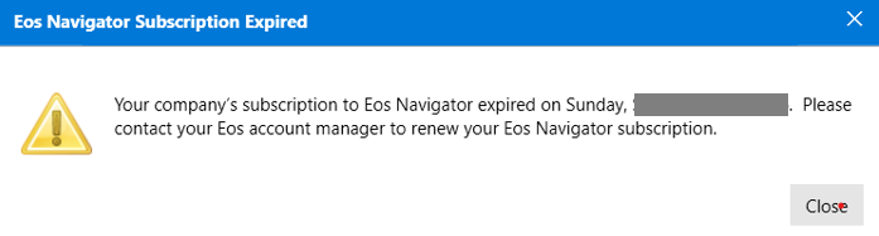
If you receive the Eos Navigator Subscription expired message, close the window and follow the steps below to apply your new license key using safe mode.
Note: If you are not receiving the expired license message, click here to see this solution.
1. Open Navigator in Safe Mode (for Administrators only)
- Hold the CTRL key while launching the application (CTRL + click)
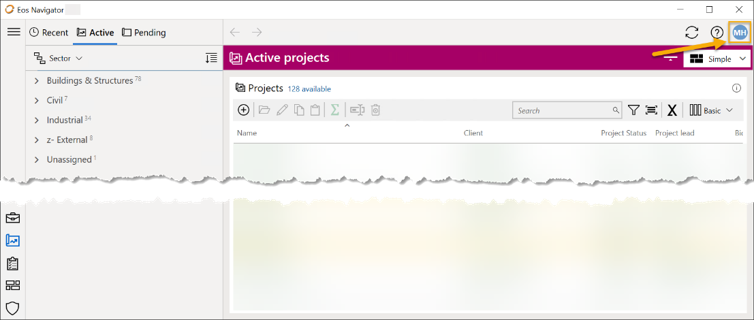
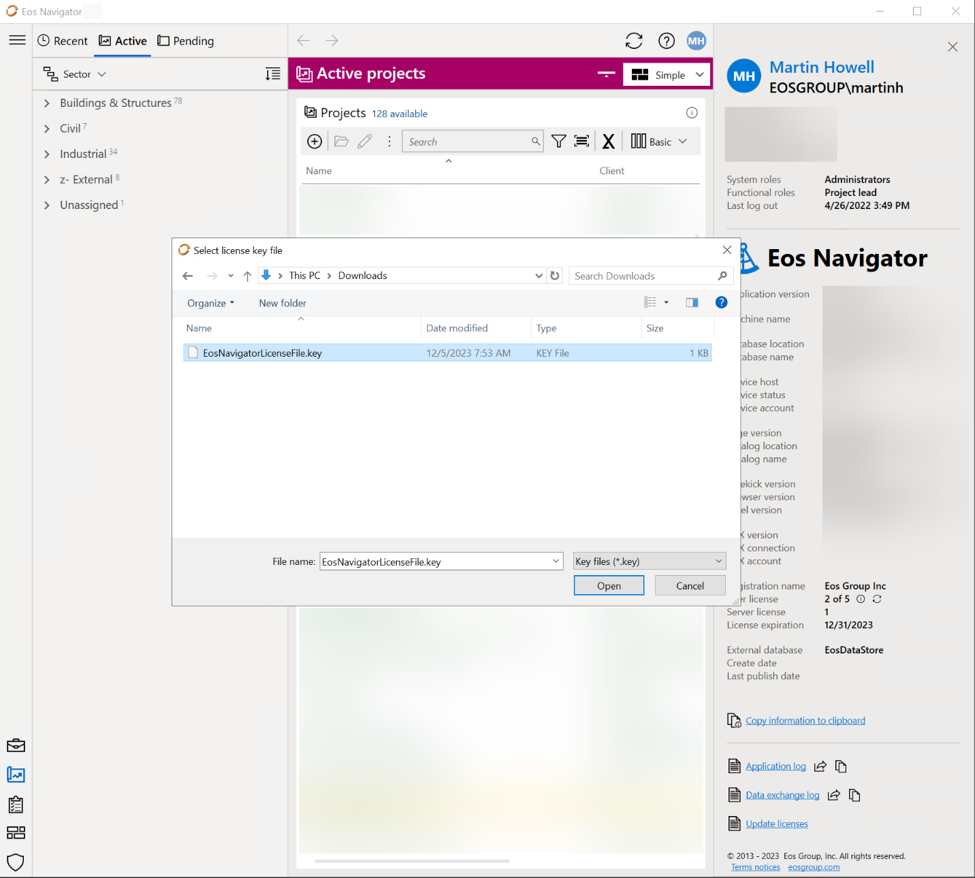
2. Once Navigator boots, click on your user initials located at the top-right corner
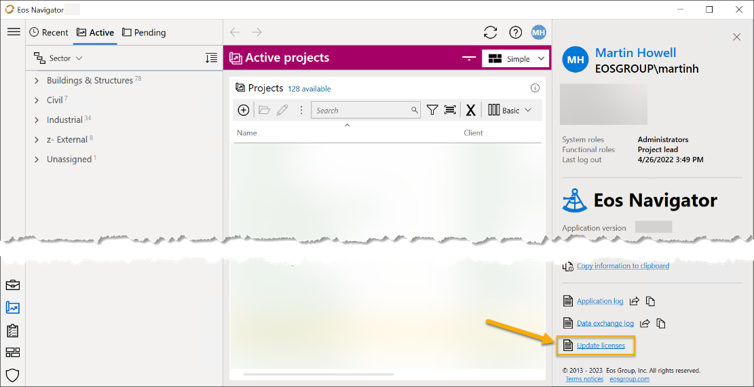
3. Scroll to the bottom of the window and click Update license
4. When the Select license key file window opens, highlight the .key file and select open
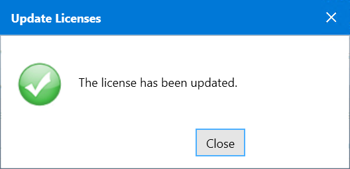
5. If applied successfully, you will receive a message stating the license is updated
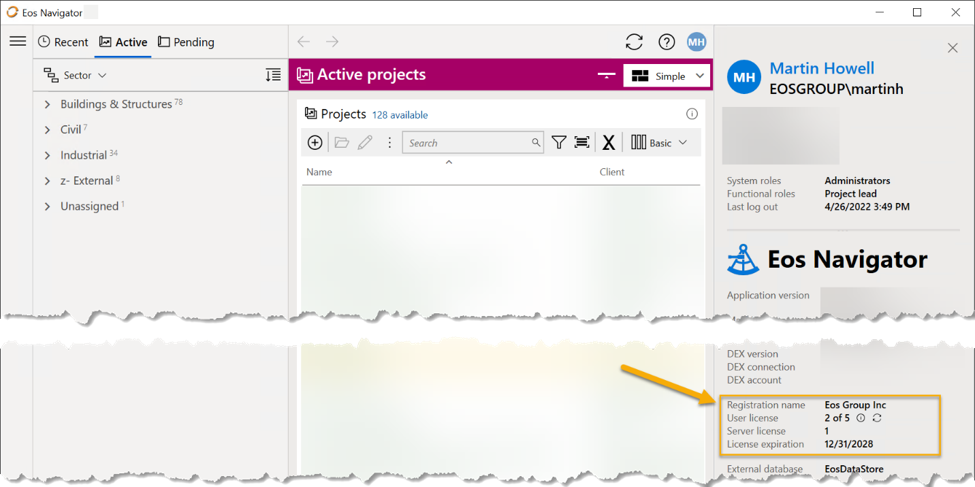
6.Confirm the updated license information (User license(s), Server license(s) and expiration date) is updated and correct