Applicable products
√ Cortex v2.x
√ Cortex 365 v2.x
Prerequisites
- A Microsoft Entra user account with an active subscription.
- One of the following roles:
- Administration and Security access granted in Eos Cortex
Overall Steps
Throughout this solution, "Eos Cortex (SSO Demo)" and "Eos Cortex Web API (SSO Demo)" are used to clearly distinguish between the two Entra apps. These two apps may be named accordingly, to align with your company standard, etc.
- Add the Entra app: Eos Cortex (SSO Demo)
- Add the Entra app: Eos Cortex Web API (SSO Demo)
- Configure the Token (claim)
- Add permissions to the Eos Cortex app to access the Web API app
- Record the configuration in Eos Cortex > Security > Authentication settings, and test.
The following values will be collected during the Entra apps setup, and used in Step 4.
| Issuer URL: (from your Tenant ID): | https://login.microsoftonline.com/********-****-****-****-********ad86/v2.0 |
| Audience: (from the Eos Cortex Web API Entra app): | ********-****-****-****-*******01566 |
| Client ID: (from the Eos Cortex Entra app): | ********-****-****-****-*******0c32c |
Scopes: | openid profile email api://********-****-****-****-*******01566/access_as_user |
1) Add the Eos Cortex application... (ex. "Eos Cortex (SSO Demo)")
- Sign in to the Microsoft Entra admin center
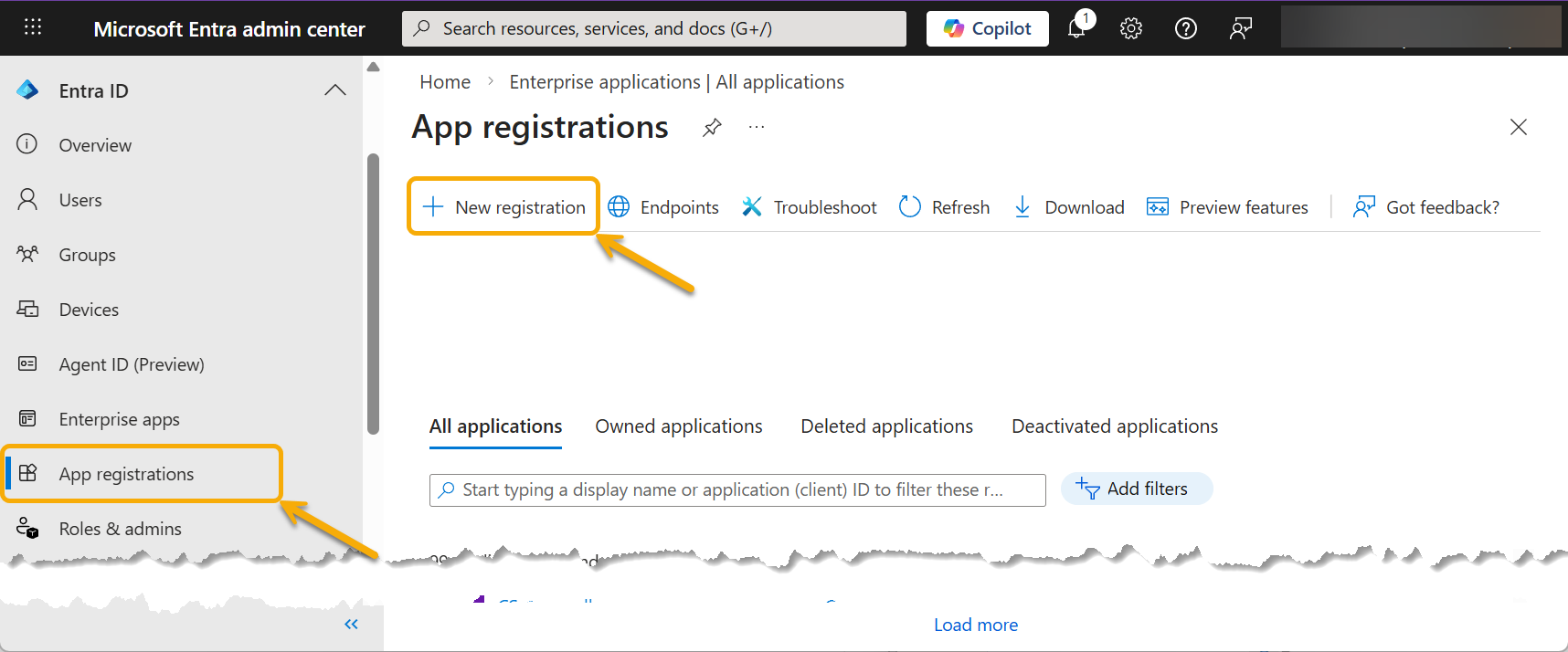
- Browse to Entra > App registrations, and select New registration.
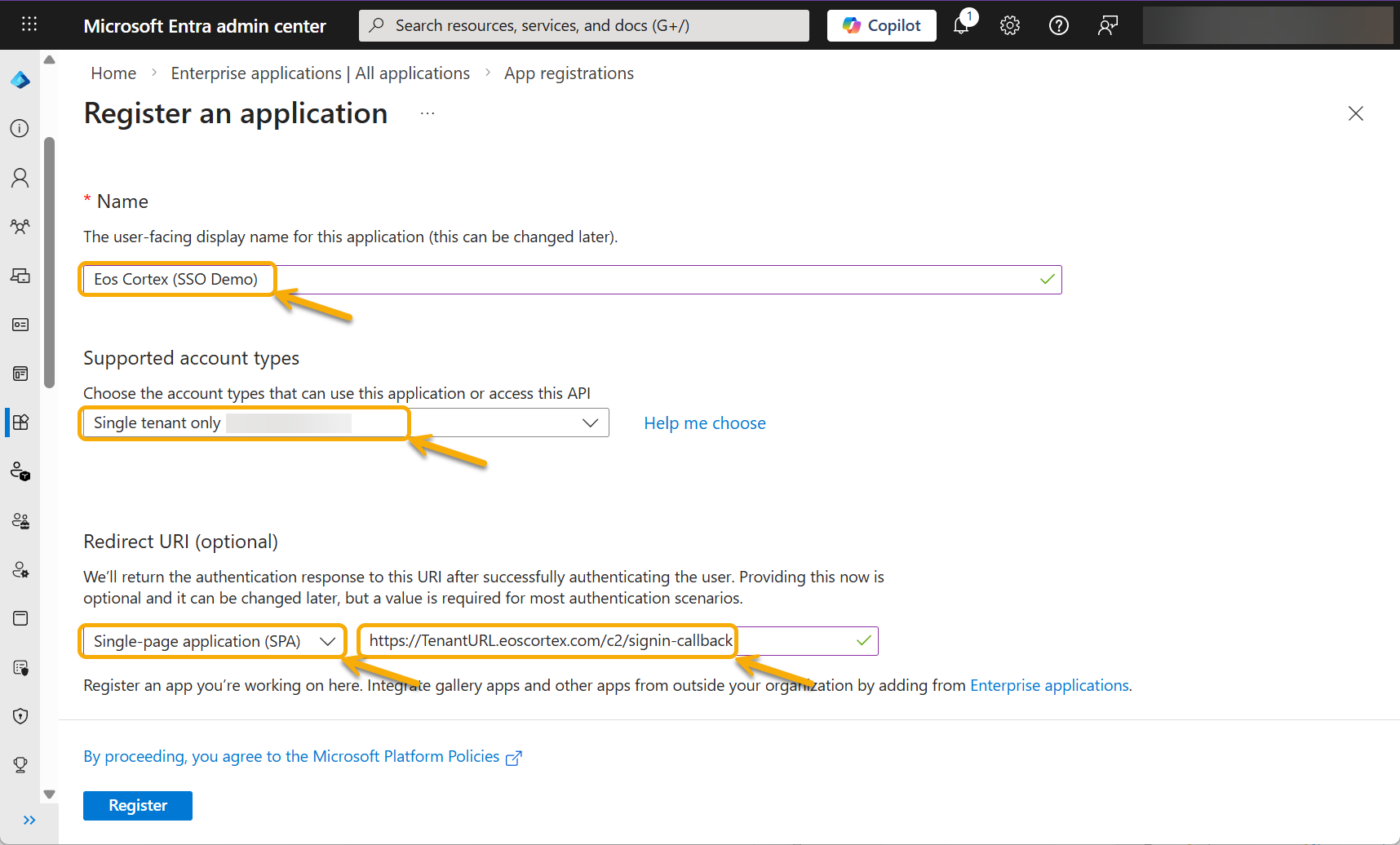
- At the Register an application dialog, enter the following, and select Register.
- The user-facing display name for this application: Eos Cortex (SSO Demo)
- Supported account types: Single tenant only
- Redirect URI platform: Single-page application (SPA)
- Redirect URI: https://%your Tenant name%.eoscortex.com/c2/signin-callback
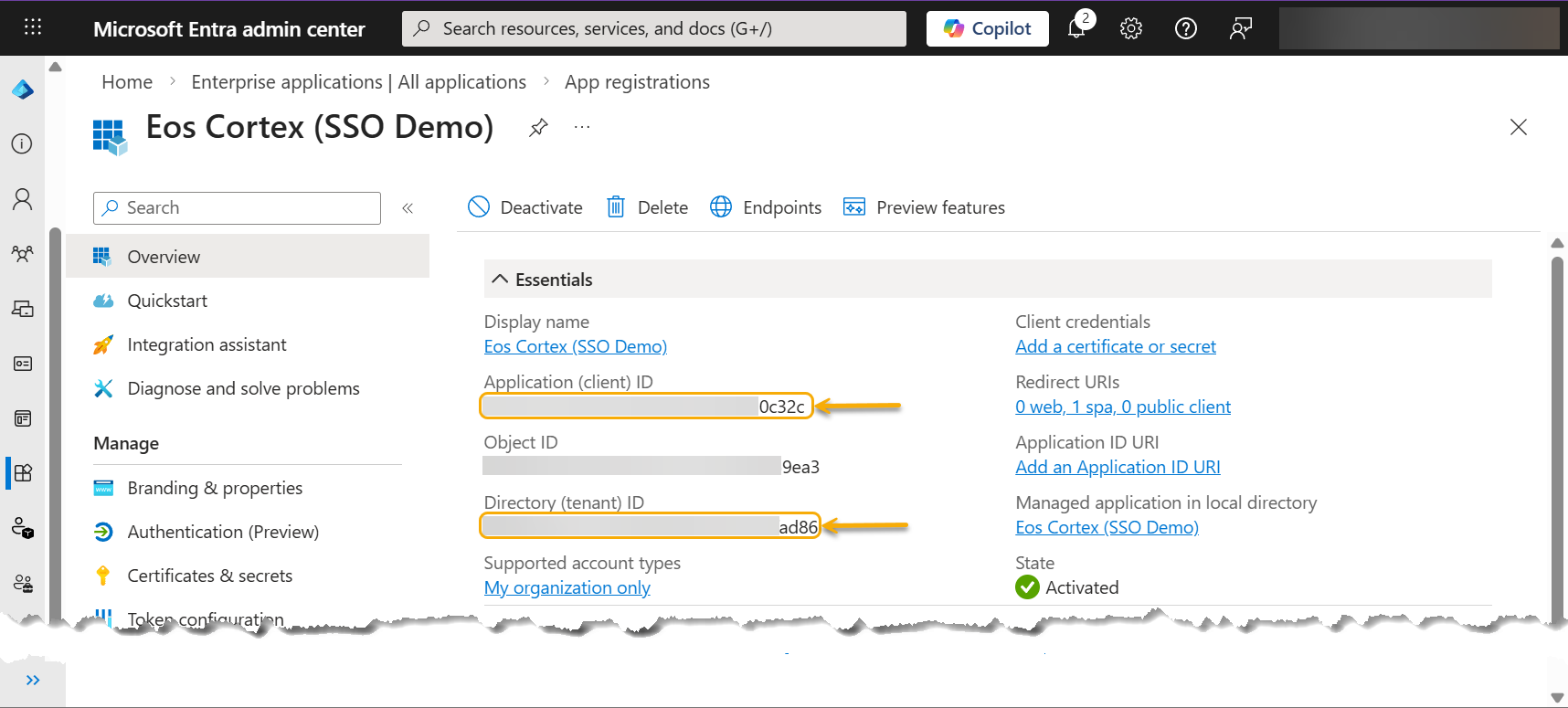
- At the newly created Entra application, record the following (for use in the Eos Cortex > Authentication settings - see Section 4, below).
- Application (client) ID: ********-****-****-****-*******0c32c
- Directory (tenant) ID: ********-****-****-****-********ad86
- Navigate to Authentication (Preview), and select the Settings tab.
- In the Front-channel logout URL box, enter the site URL + /c2/signout-callback and click Save.
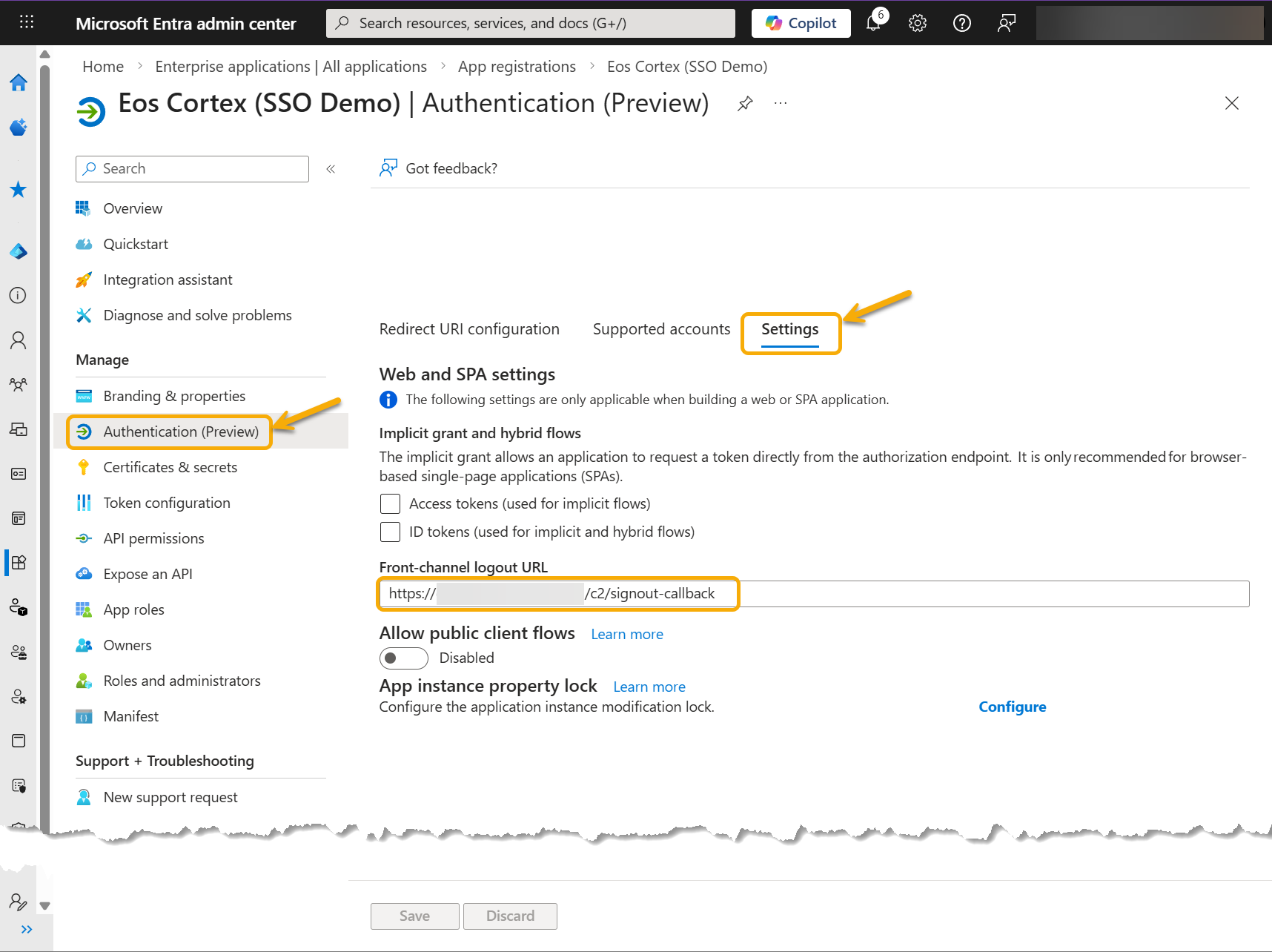
- In the Front-channel logout URL box, enter the site URL + /c2/signout-callback and click Save.
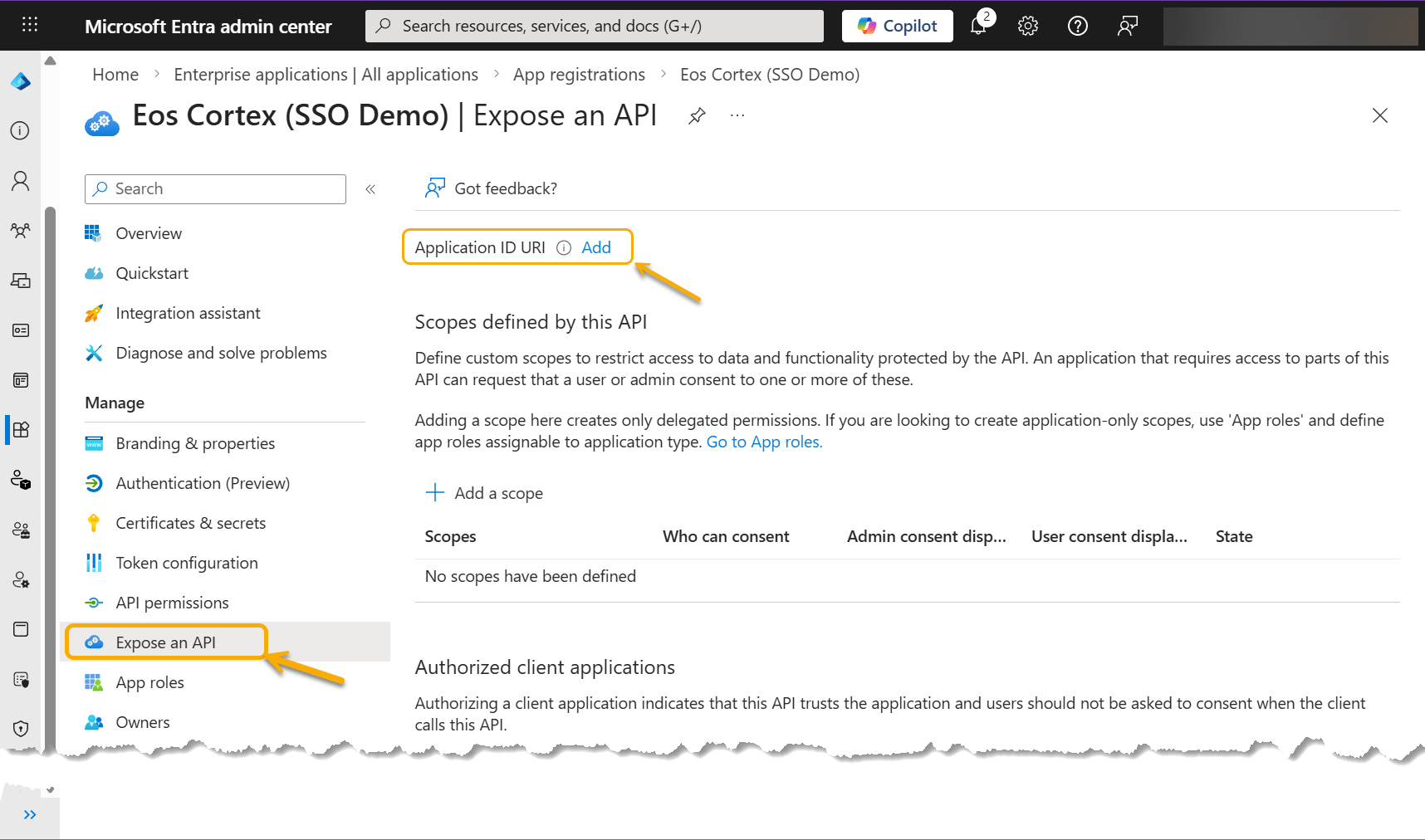
- Navigate to Expose an API, and select Add (next to Application ID URI)...
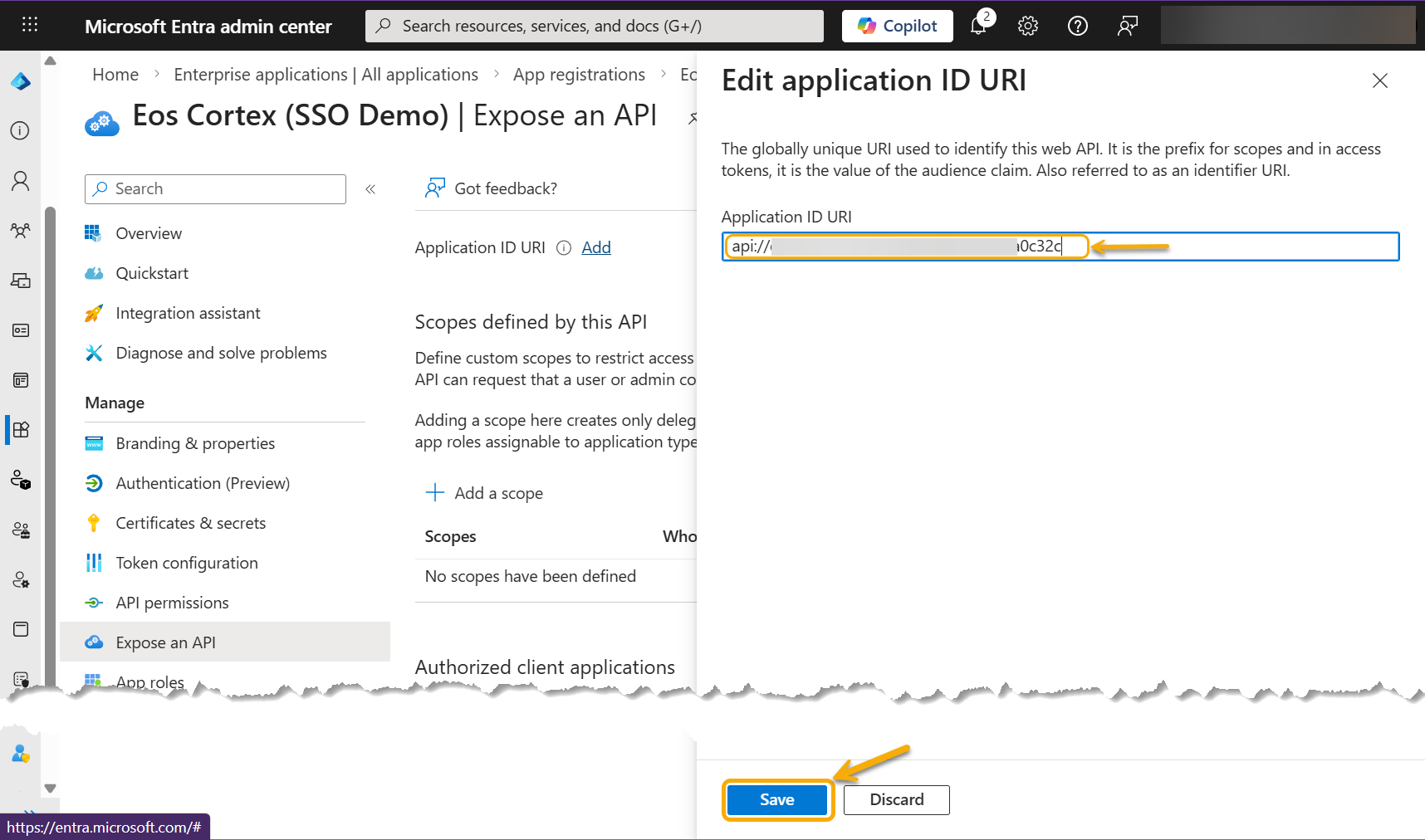
- At the Edit application ID URI, click Save (leaving the default entry).
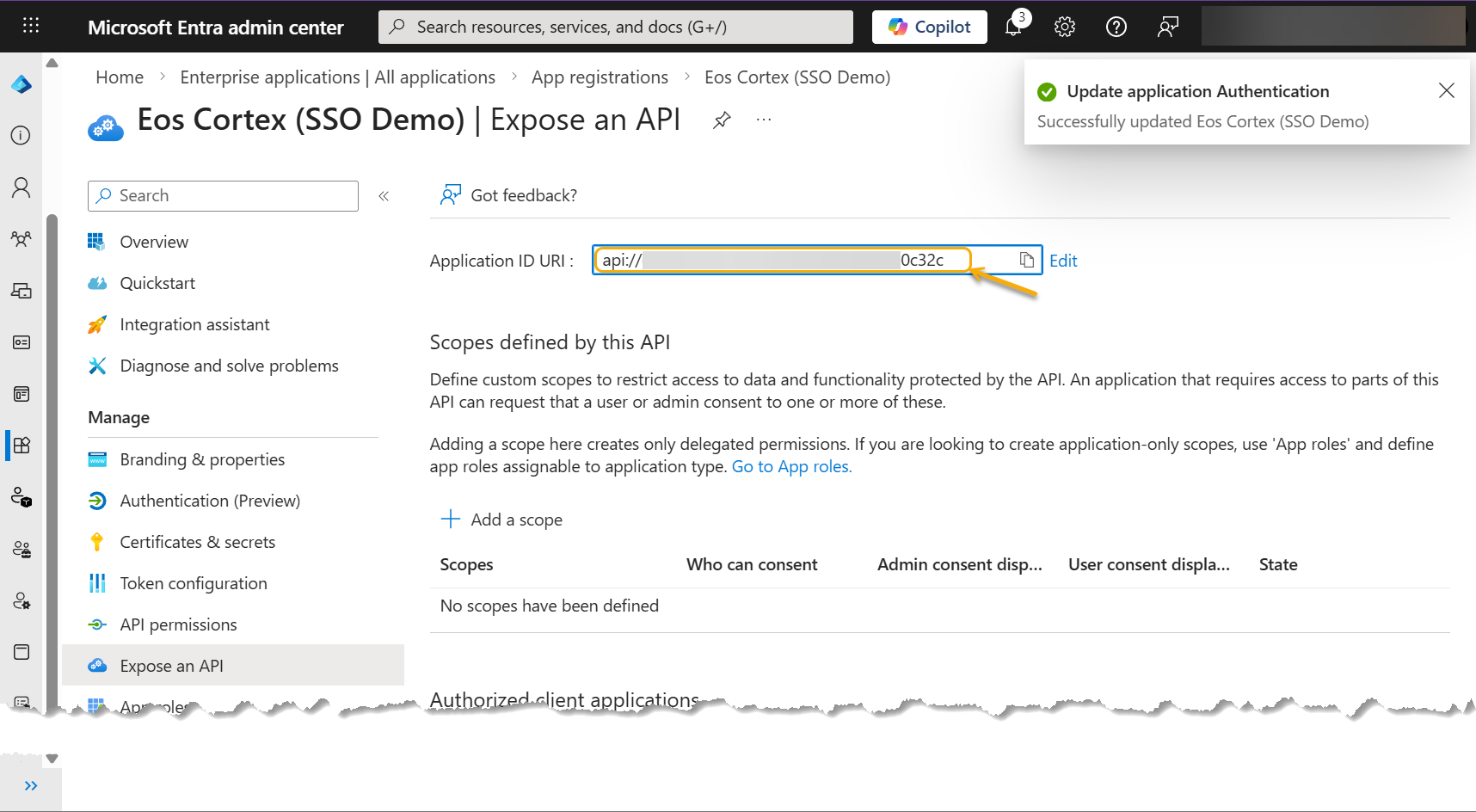
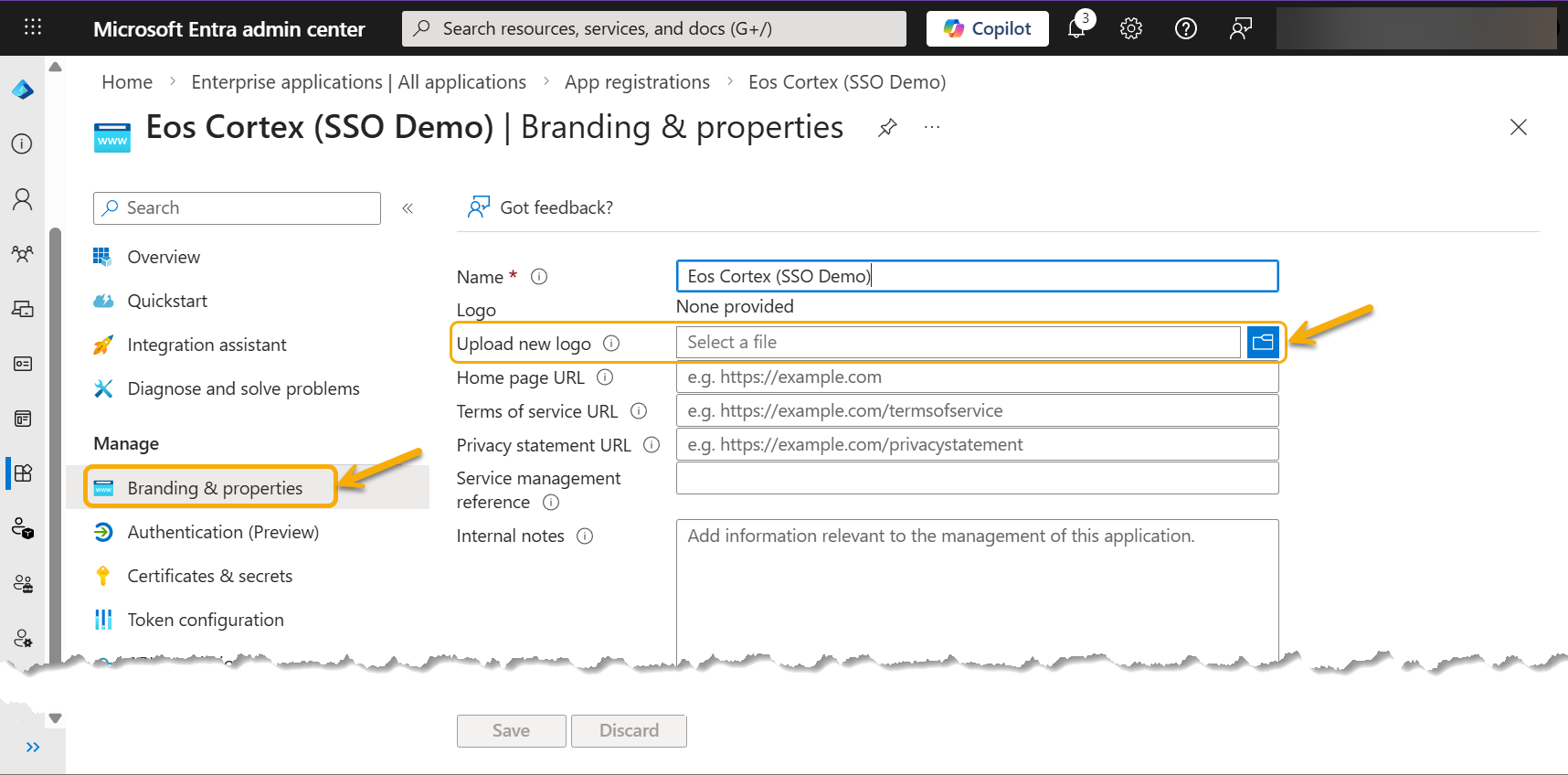
Note: Record the Application ID URI. (for use in the Eos Cortex > Authentication settings - see Section 4, below) - At the Branding & properties, select Upload new logo, and select the "Eos Cortex" logo at the bottom of this solution, and select Save.
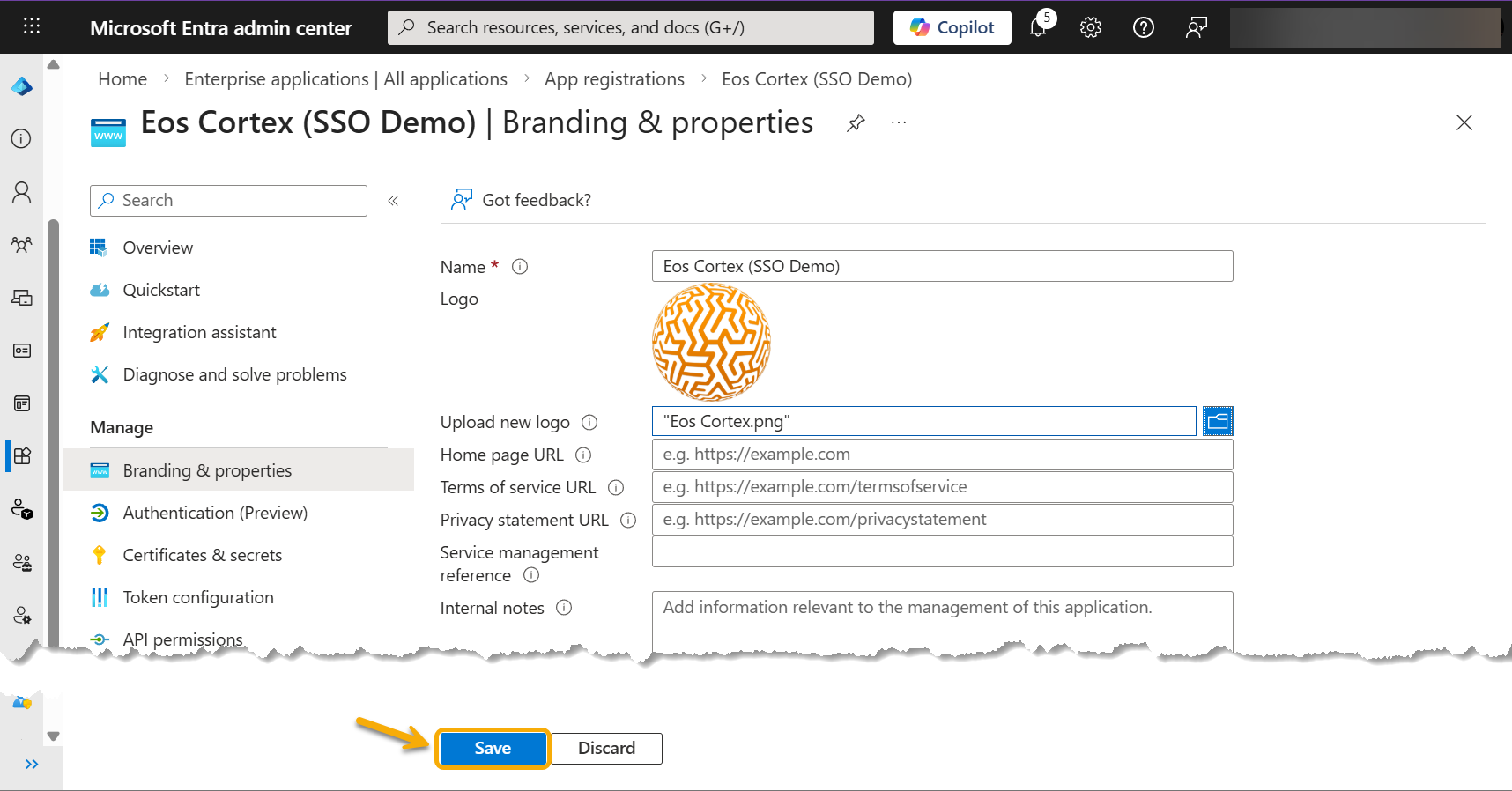
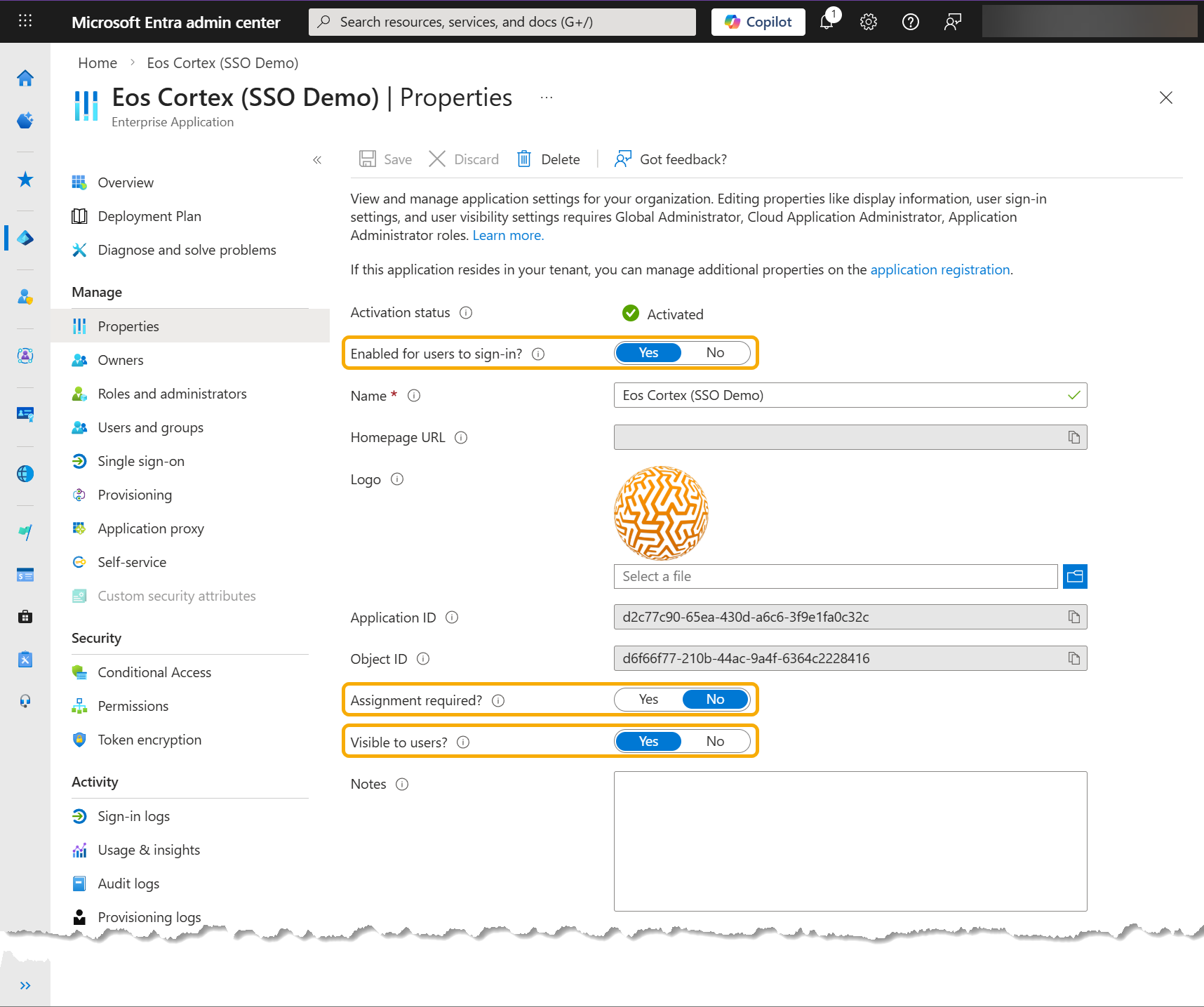
- At the Properties dialog, set the following settings as required.
- Enabled for users to sign-in? Yes
- Assignment required? Yes | No
- Visible to users? Yes | No
2) Add the Eos Cortex Web API application... (ex. "Eos Cortex Web API (SSO Demo)")
- Sign in to the Microsoft Entra admin center
- Browse to Entra > App registrations, and select New registration.
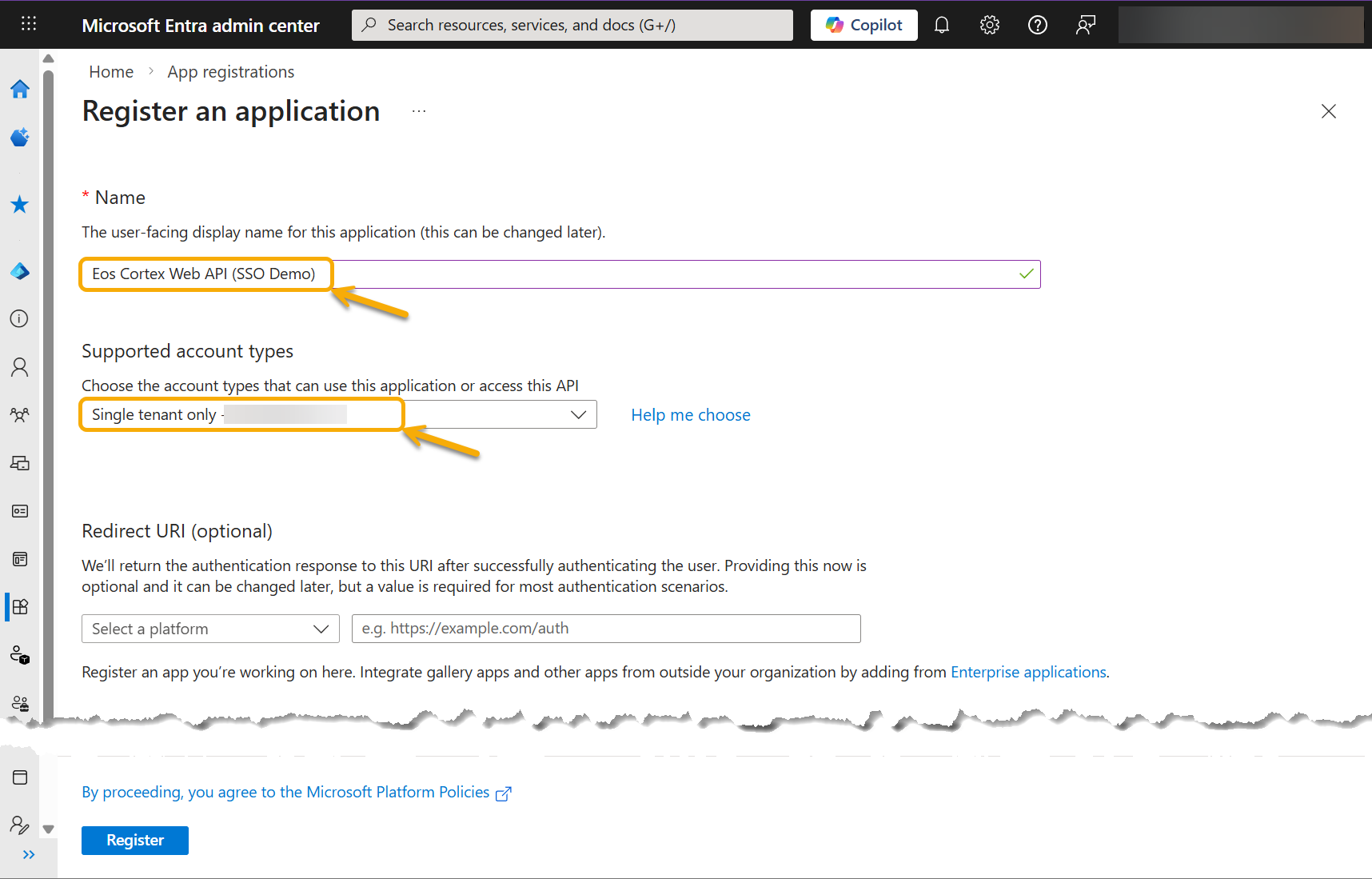
- At the Register an application dialog, enter the following, and select Register.
- The user-facing display name for this application: Eos Cortex Web API (SSO Demo)
- Supported account types: Single tenant only
- Redirect URI platform: n/a
- Redirect URI: n/a
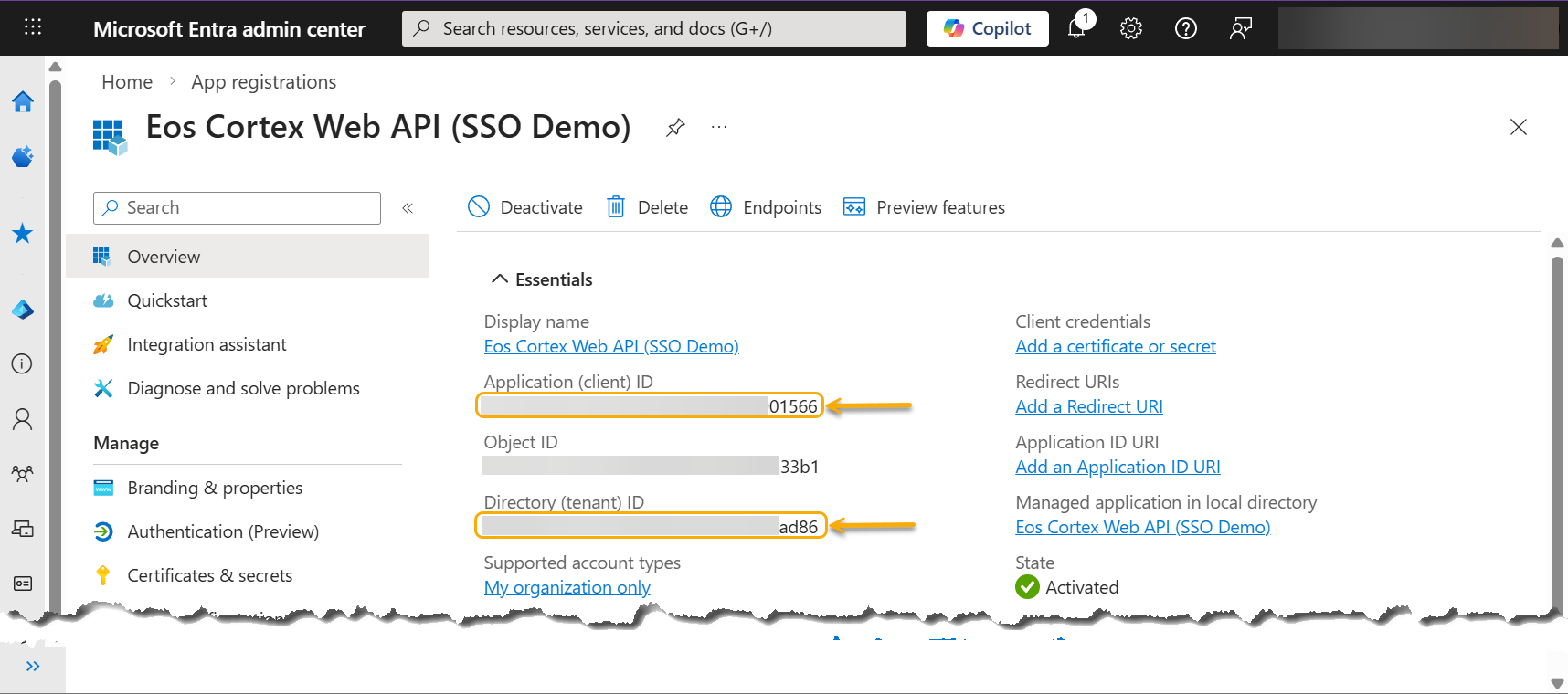
- At the newly created Entra application, record the following (for use in the Eos Cortex > Authentication settings - see Section 4, below).
- Application (client) ID: ********-****-****-****-*******01566
- Directory (tenant) ID: ********-****-****-****-********ad86
- Navigate to Expose an API, and select Add (next to Application ID URI)...
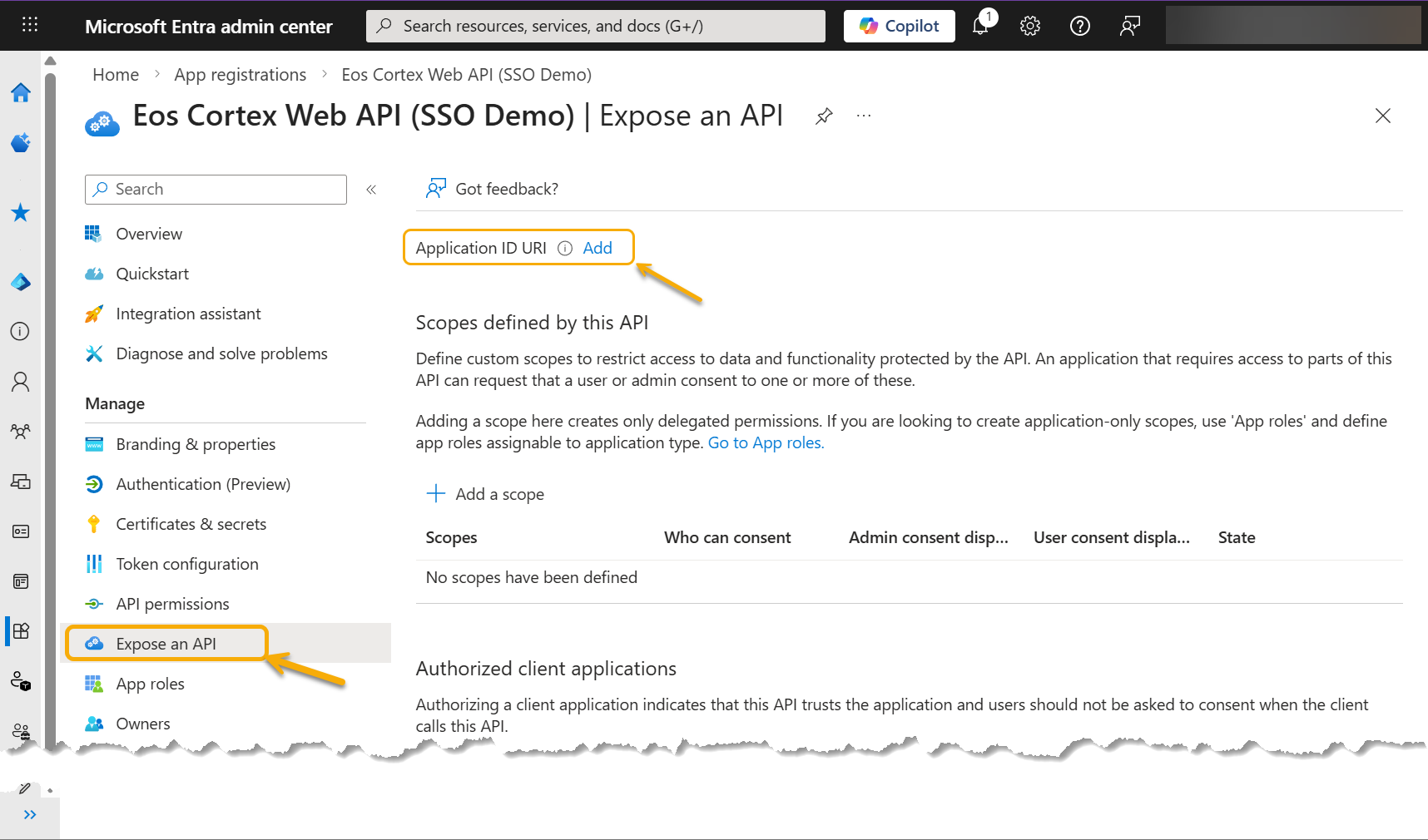
- At the Edit application ID URI, click Save (leaving the default entry).
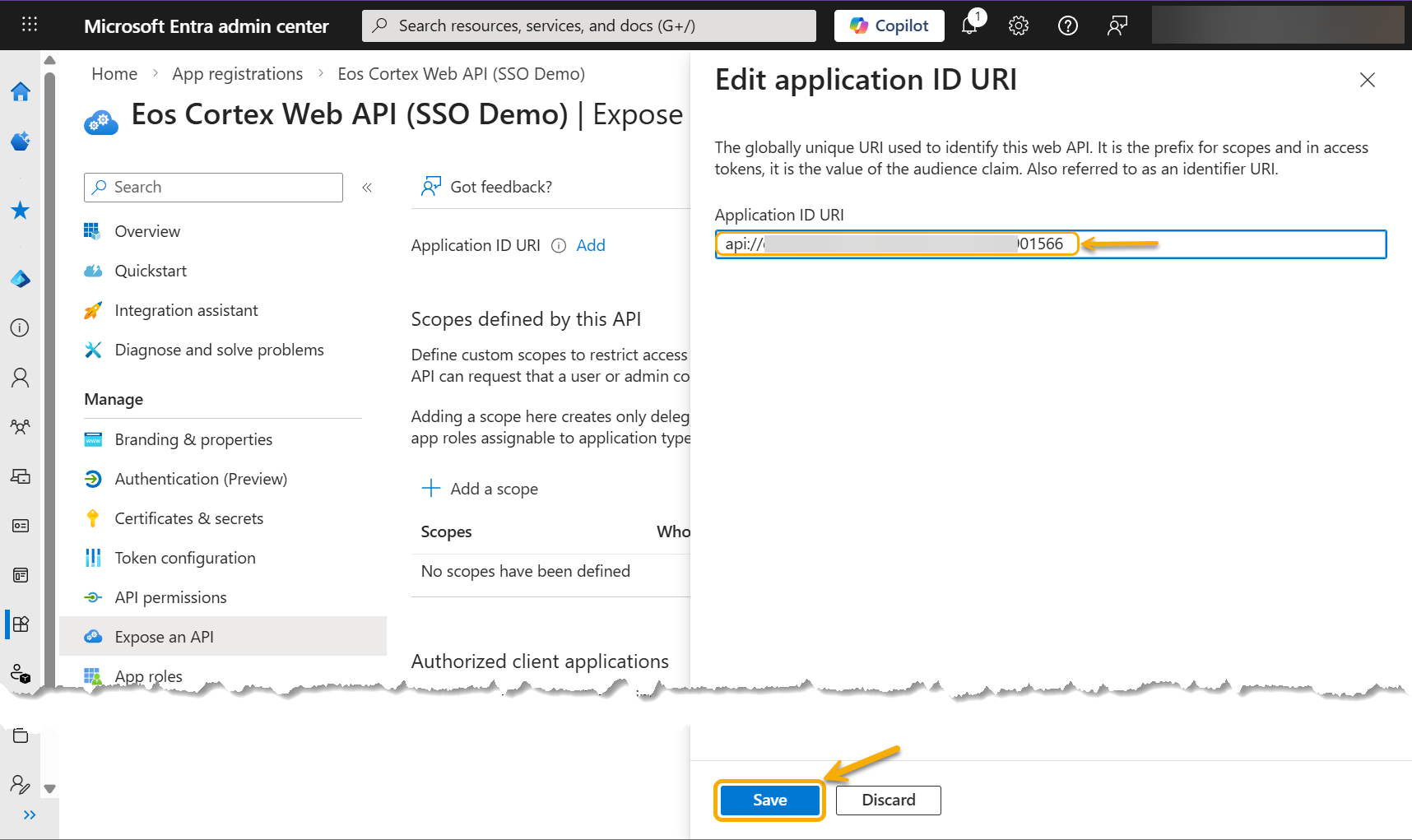
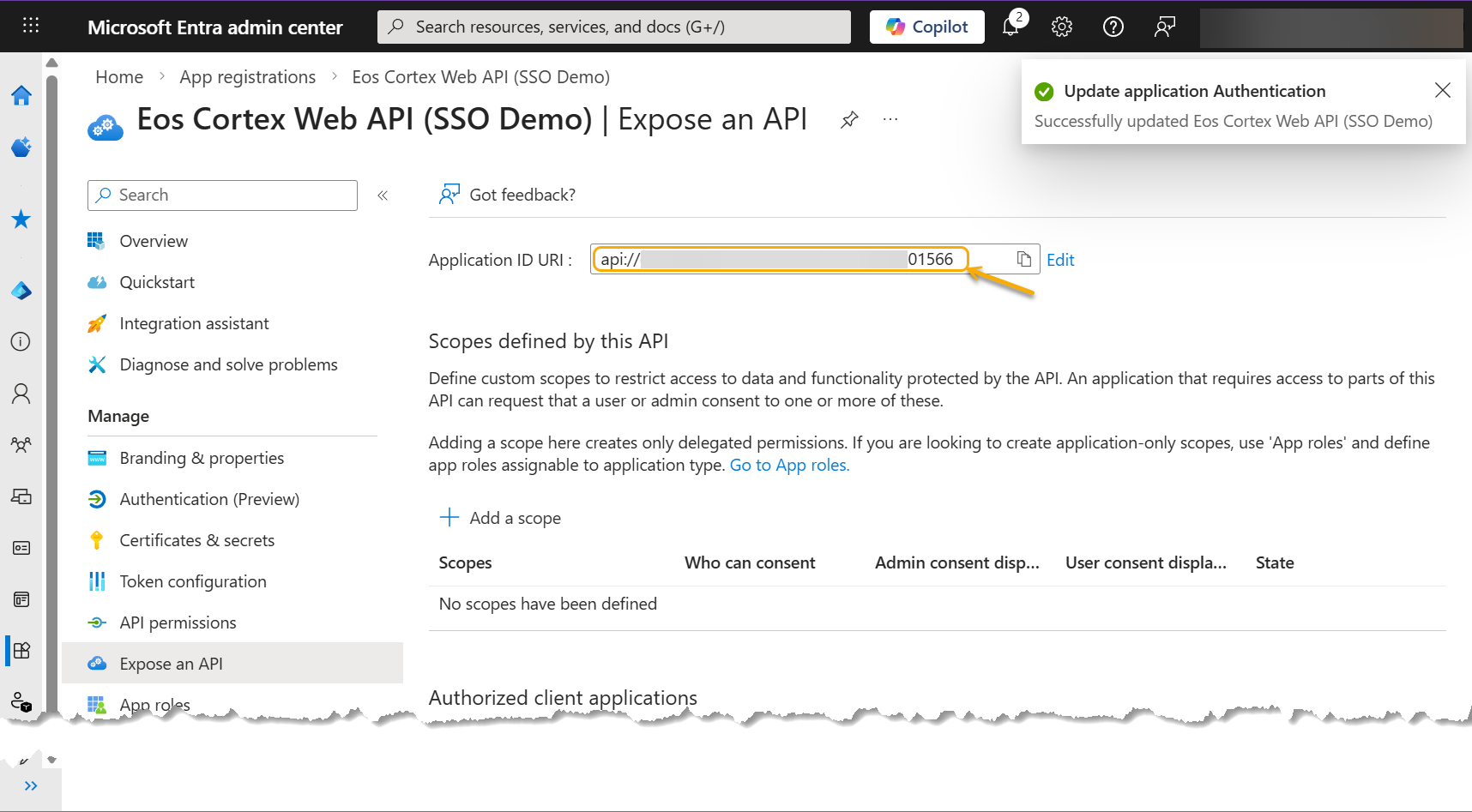
Note: Record the Application ID URI. (for use in the Eos Cortex > Authentication settings - see Section 4, below) - Select Add a scope...
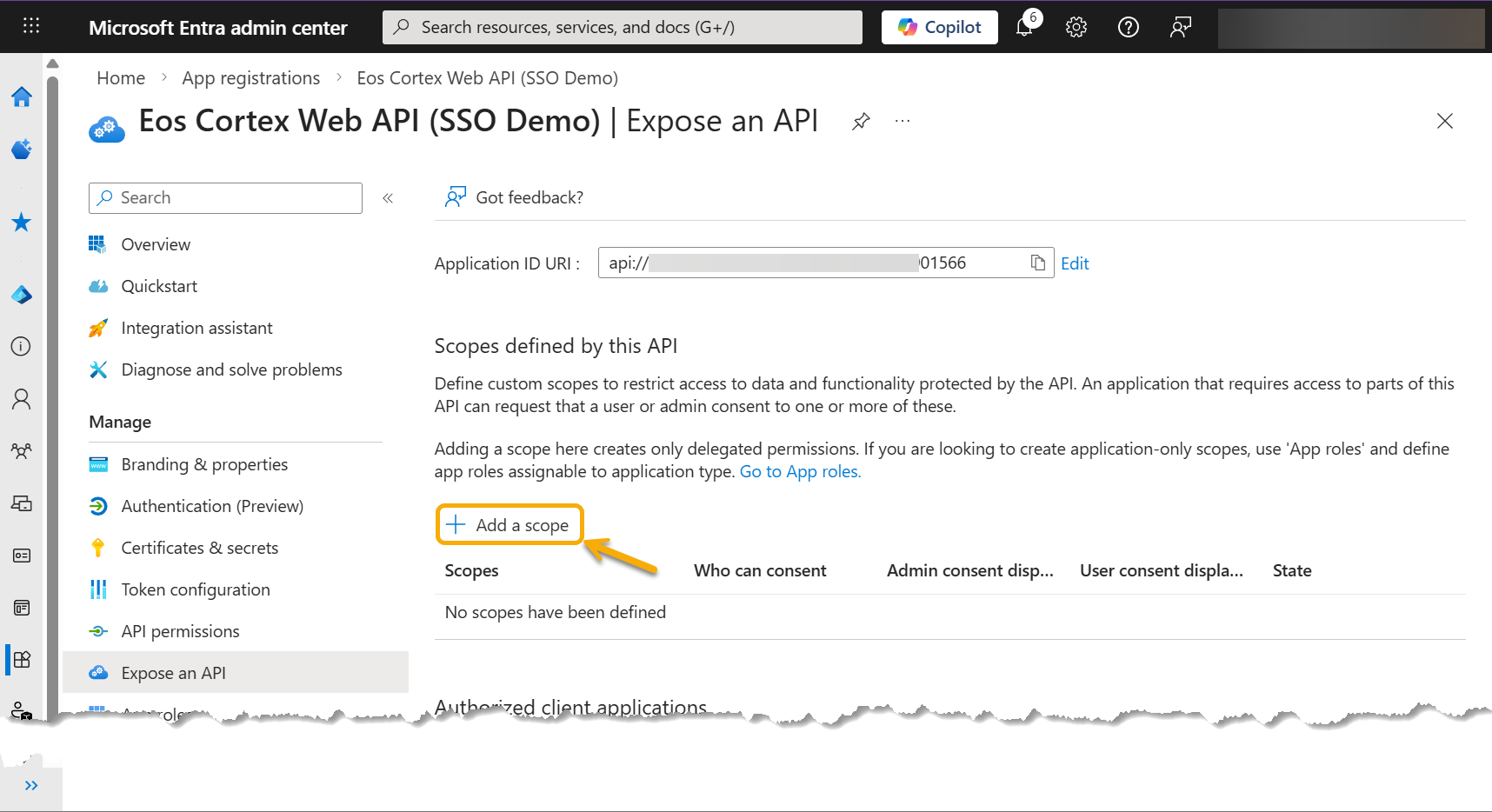
- At the Add a scope dialog, enter the following values:
- Scope name: access_as_user
- Who can consent: Admins only
- Admin consent display name: Access the Eos Cortex Web API
- Admin consent description: Access the Eos Cortex Web Application as a user
- User consent display name: Access the Eos Cortex Web API
- User consent description: Access the Eos Cortex Web Application as a user
- State: Enabled
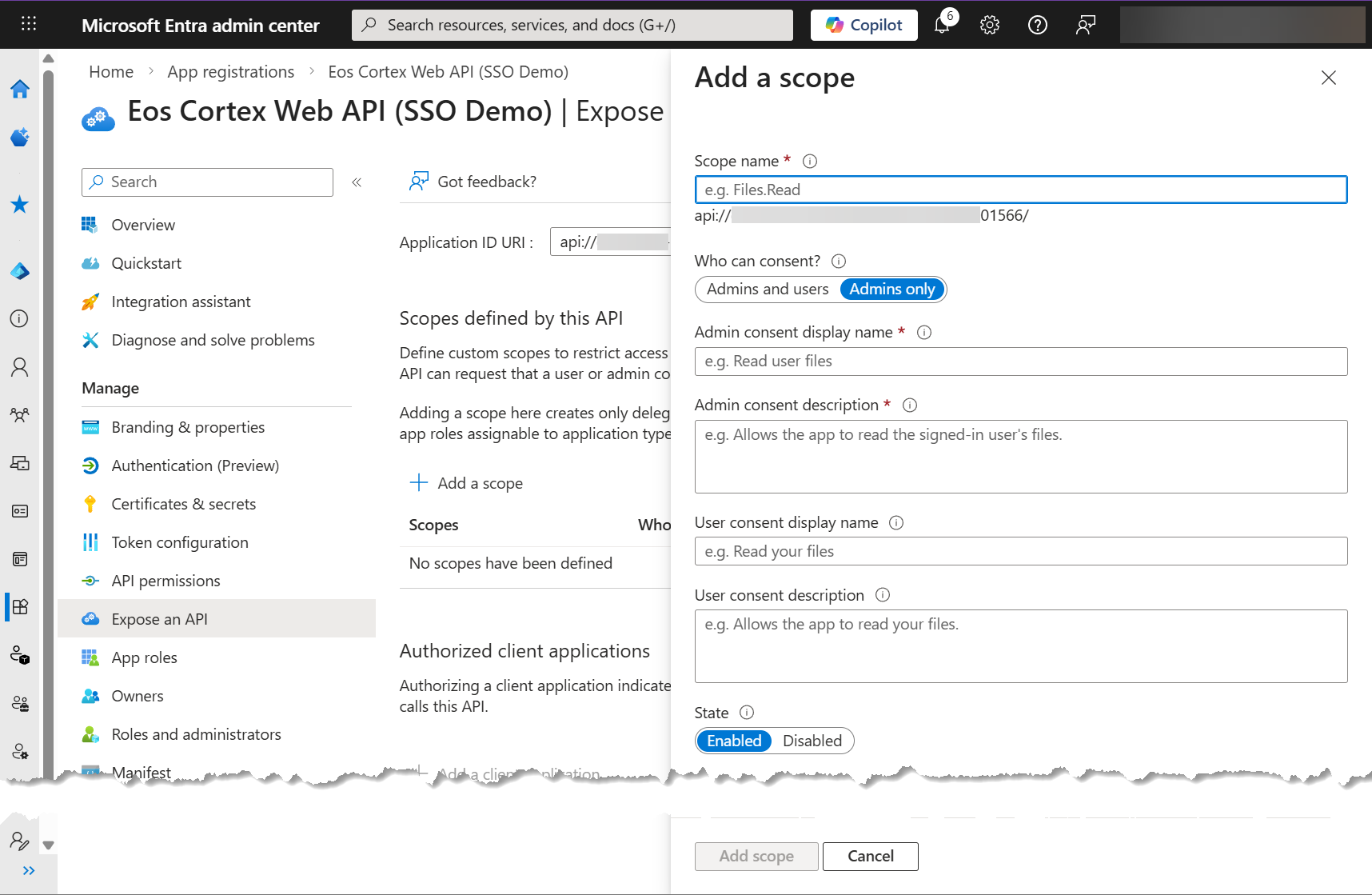
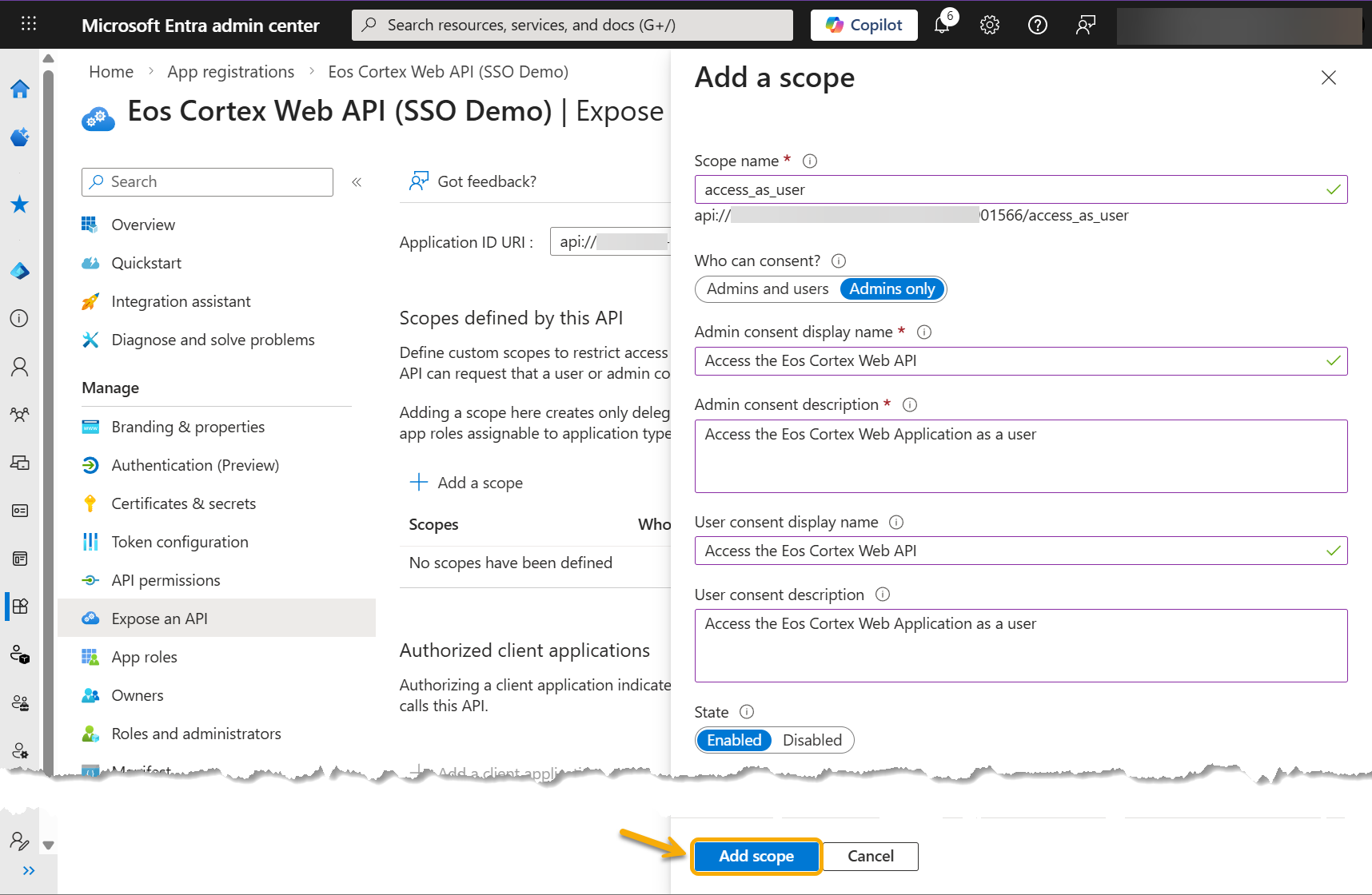
- At the Expose an API dialog, copy the scopes value. (for use in the Eos Cortex > Authentication settings - see Section 4, below)
ex:
api://********-****-****-****-*******01566/access_as_user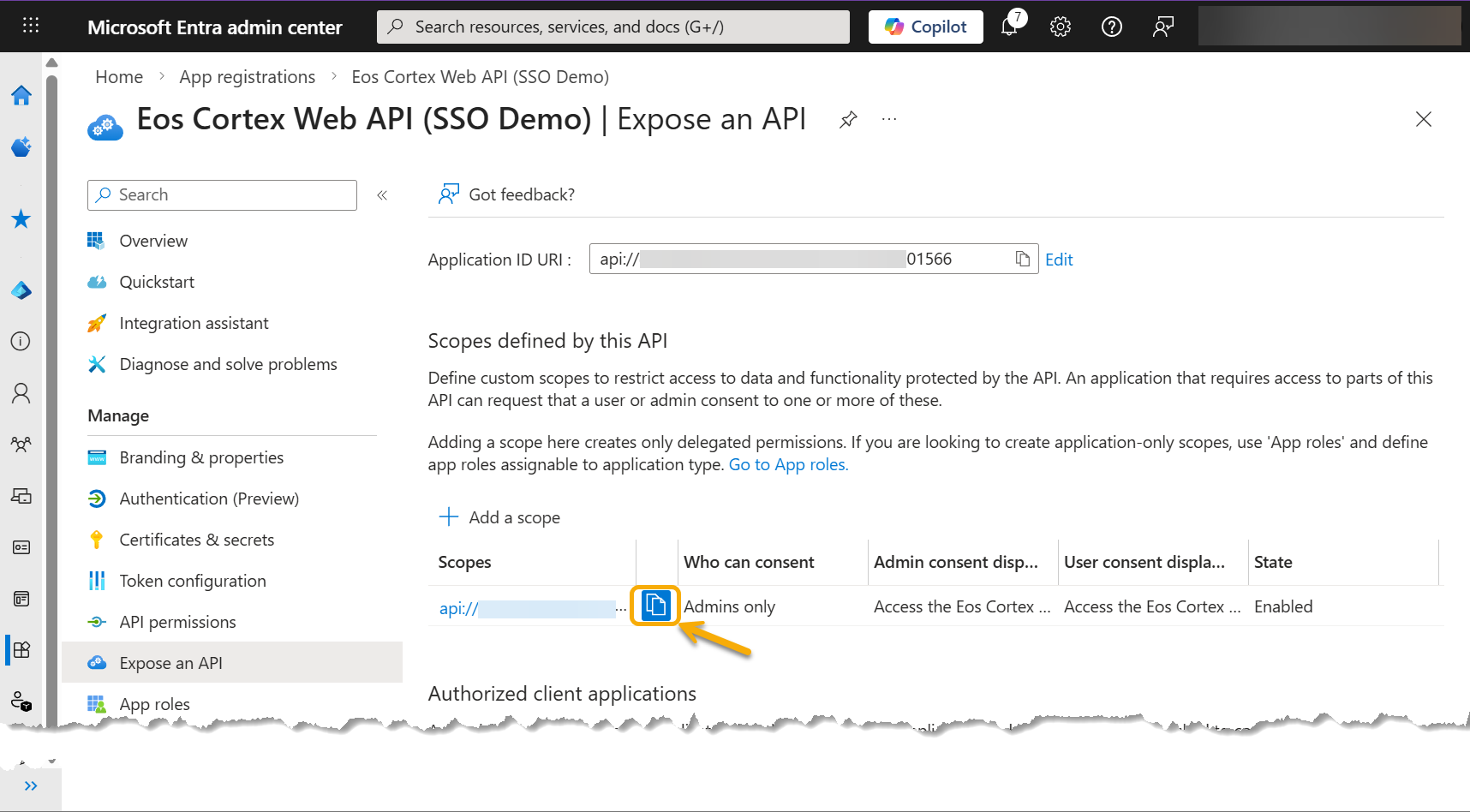
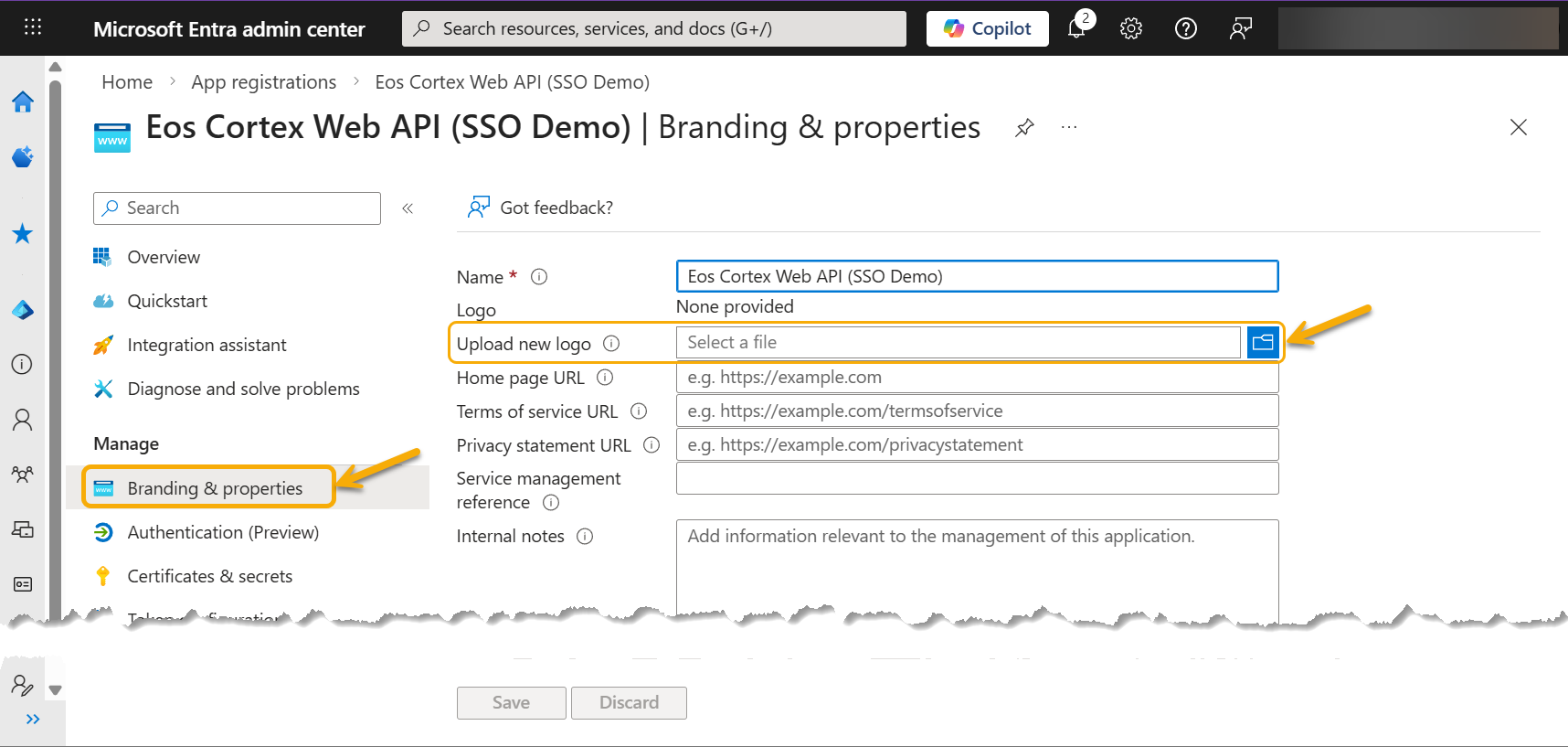
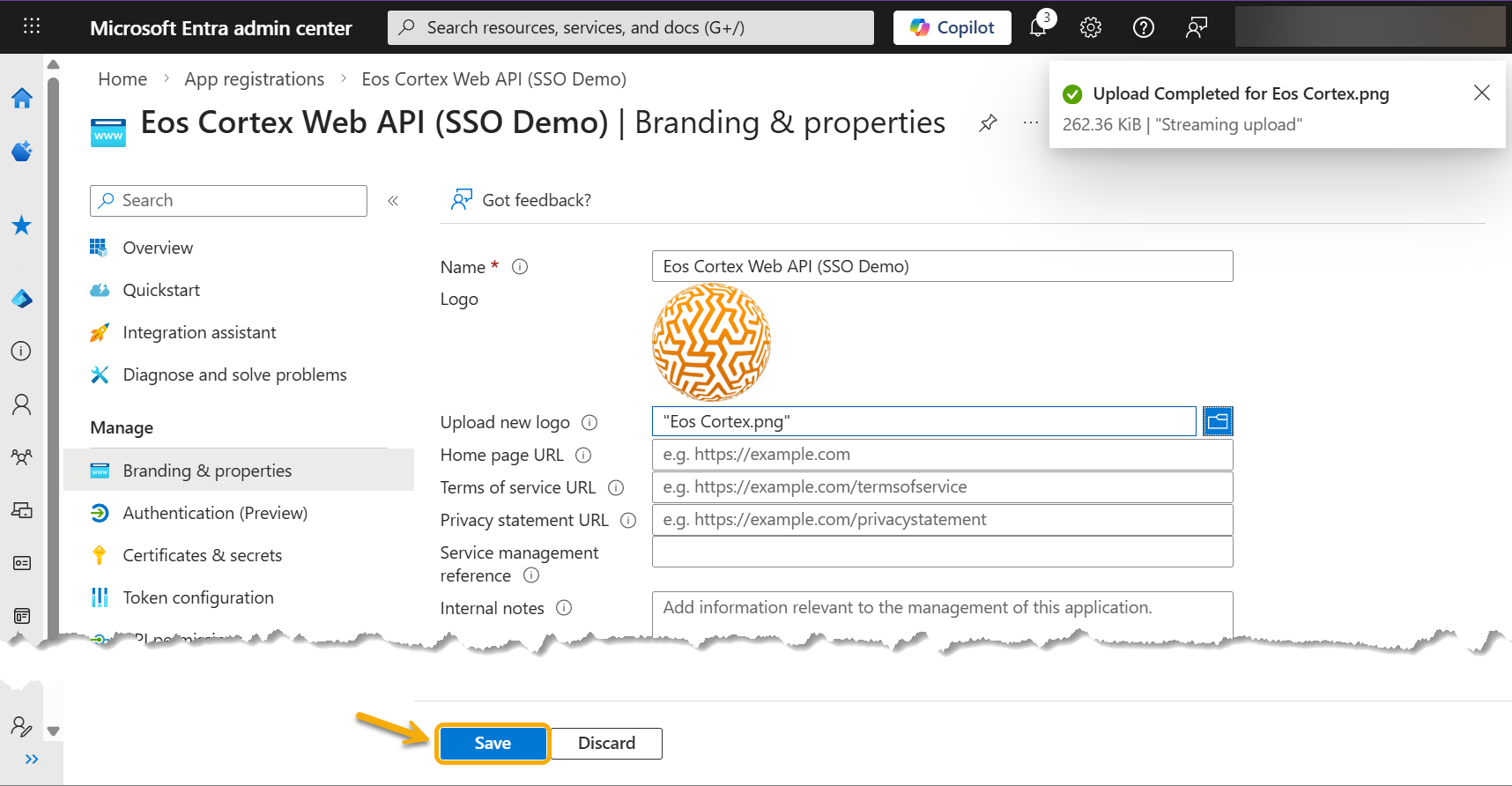
- At the Branding & properties, select Upload new logo, and select the "Eos Cortex" logo at the bottom of this solution, and select Save.
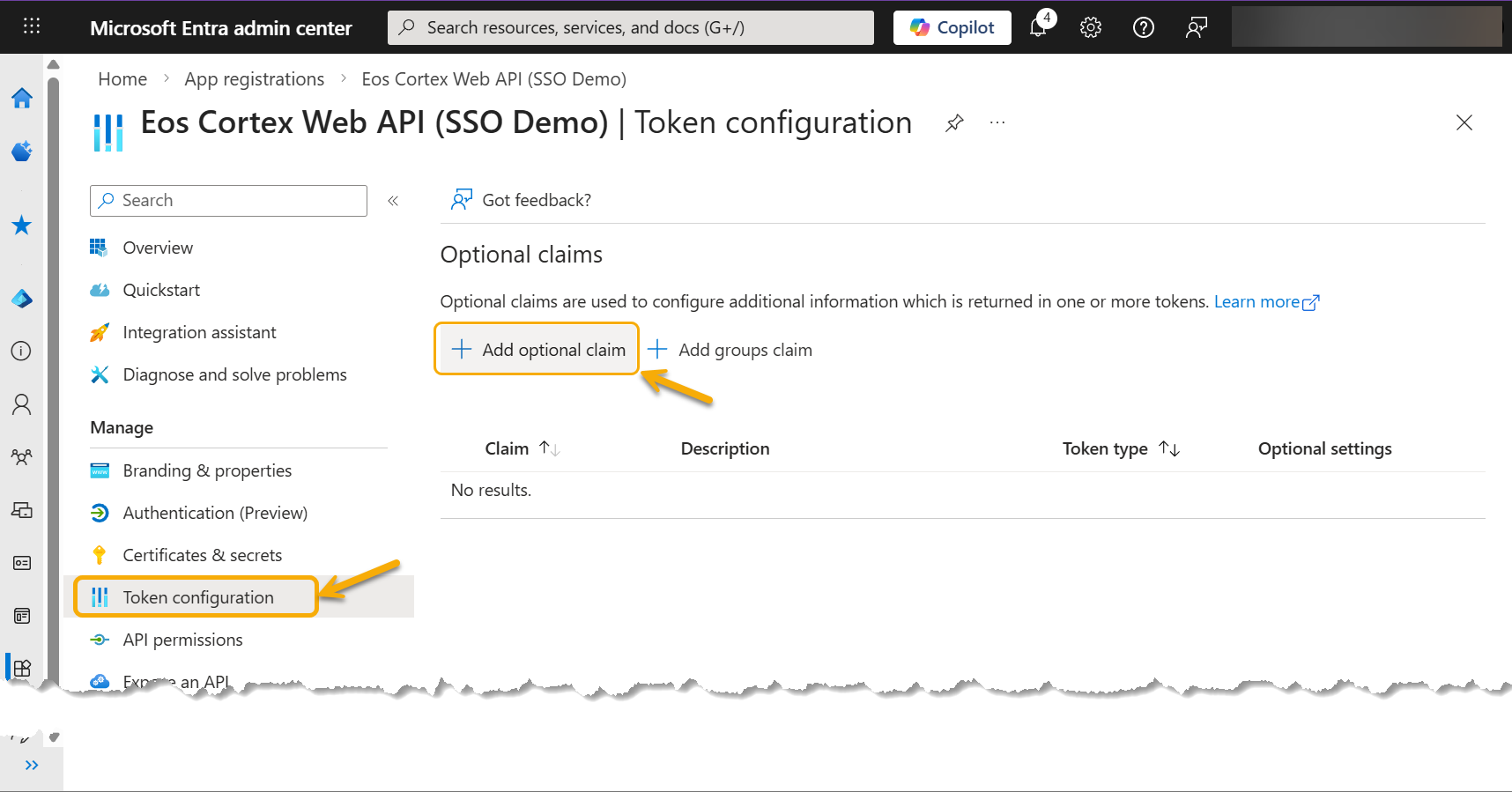
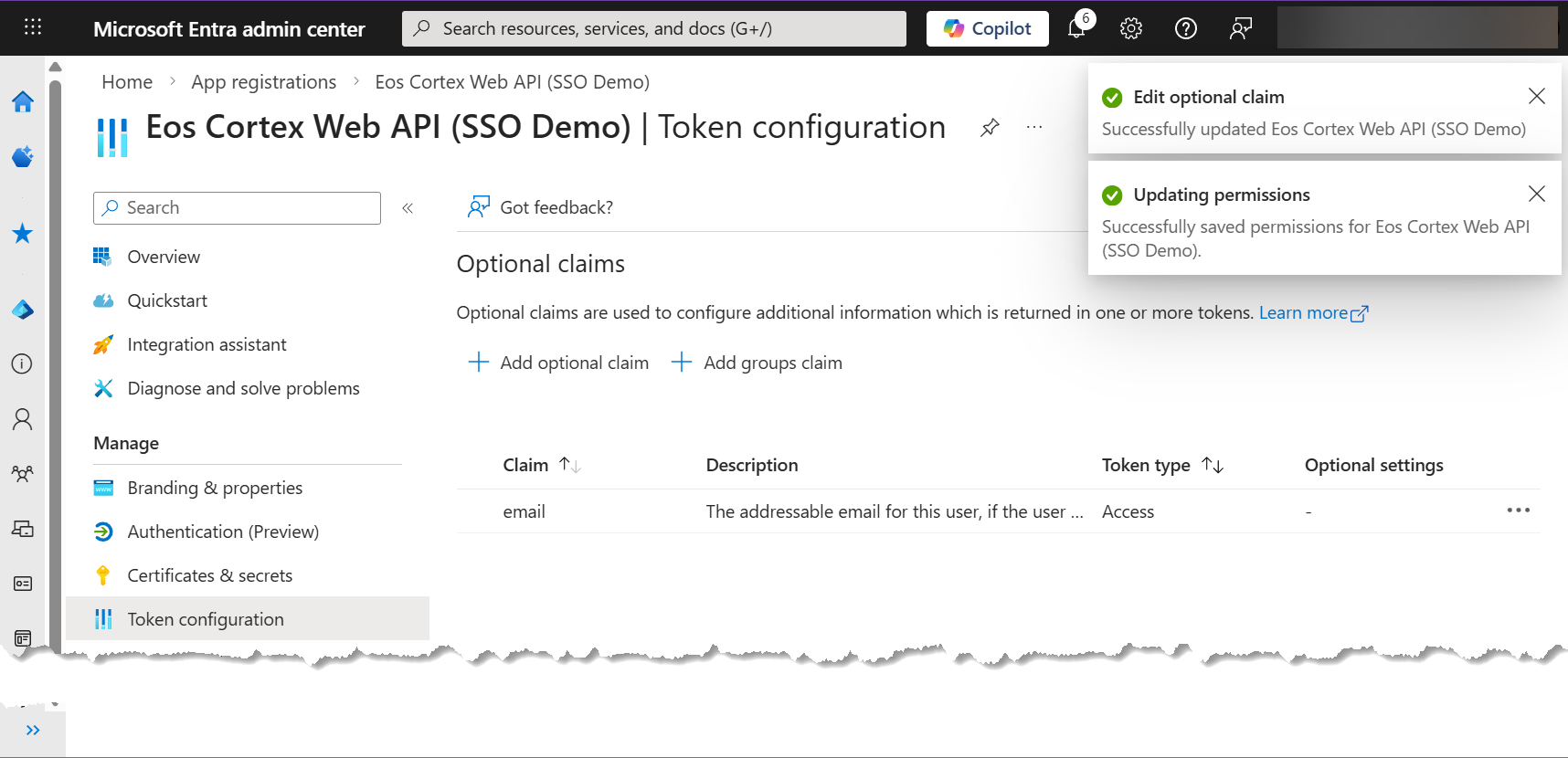
- At the Token configuration, select Add optional claim...
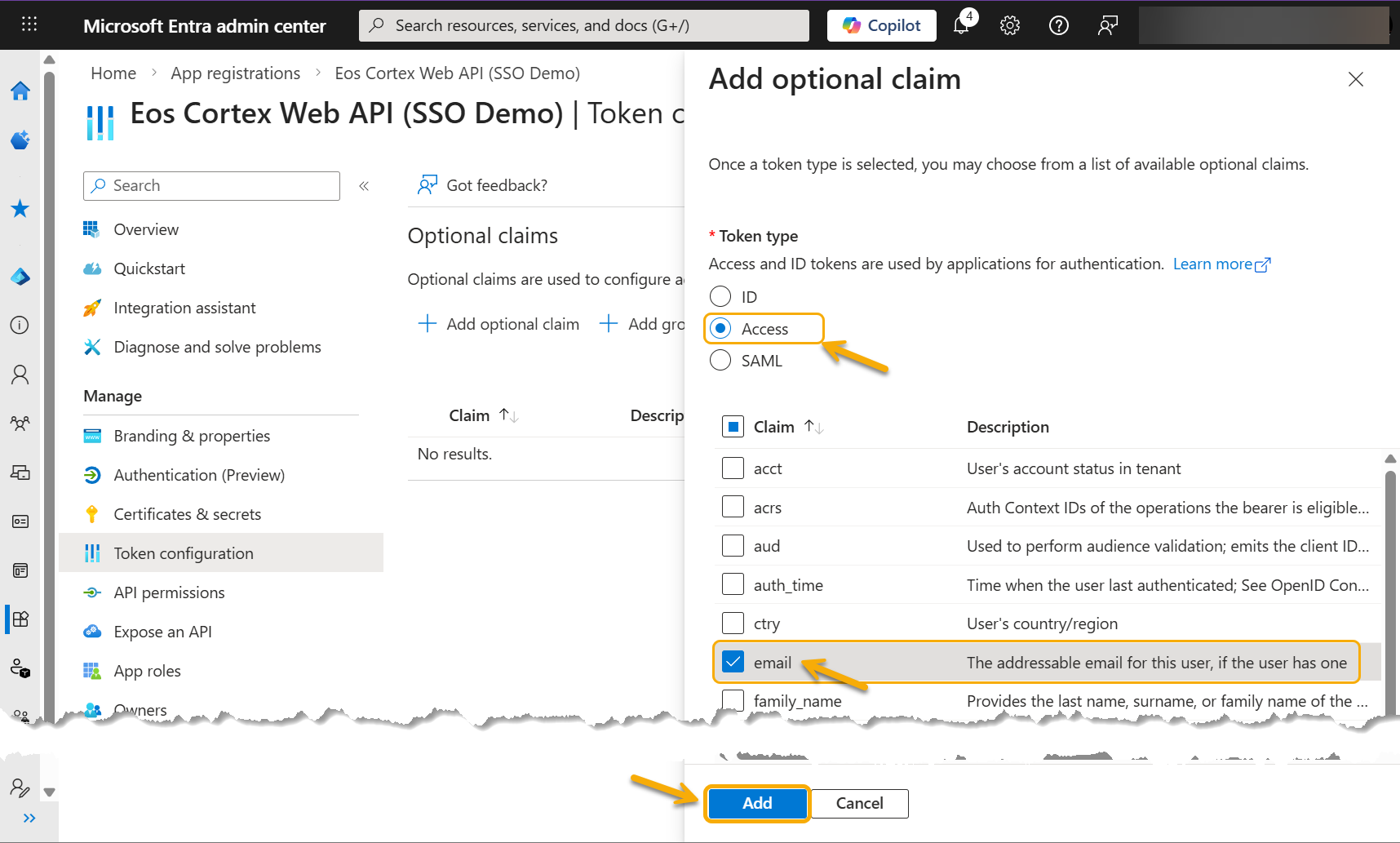
- At the Add optional claim dialog... under Token type, select Access, and check the email Claim... then select Add.
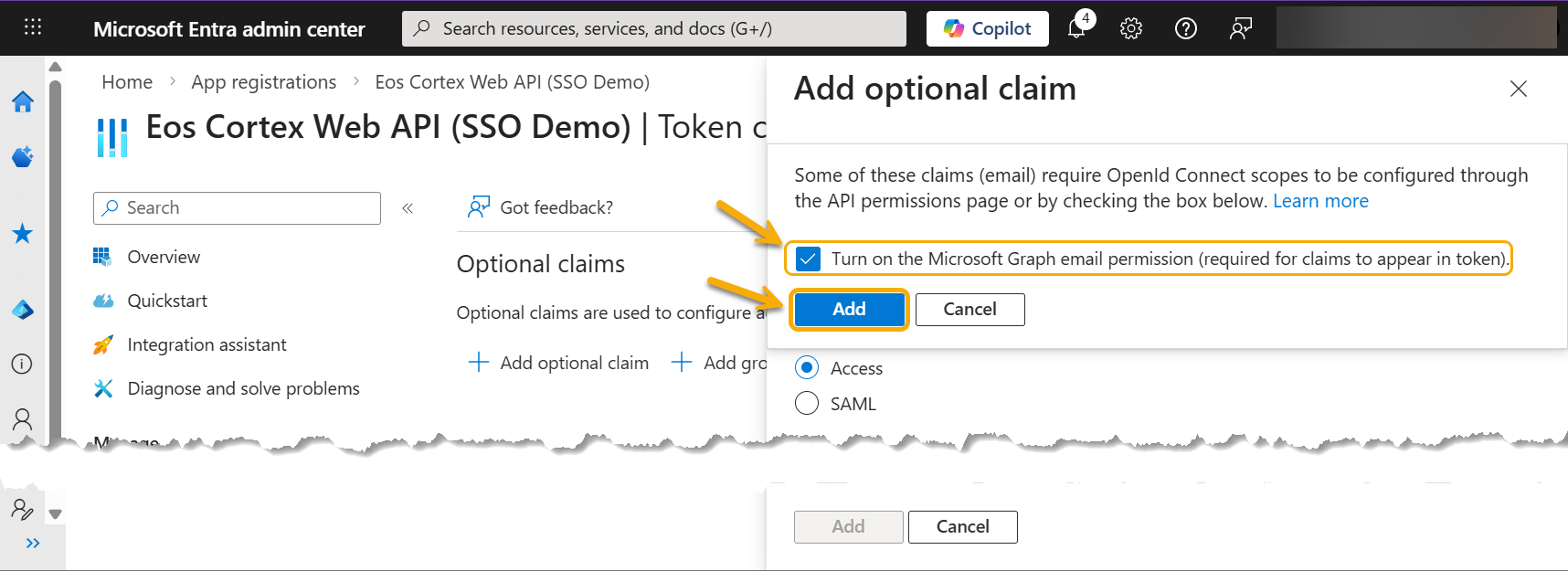
- At the message box... "Some of these claims (email) require OpenId Connect scopes...", check the box, "Turn on the Microsoft Graph email permission (required for claims to appear in token)."... and select Add.
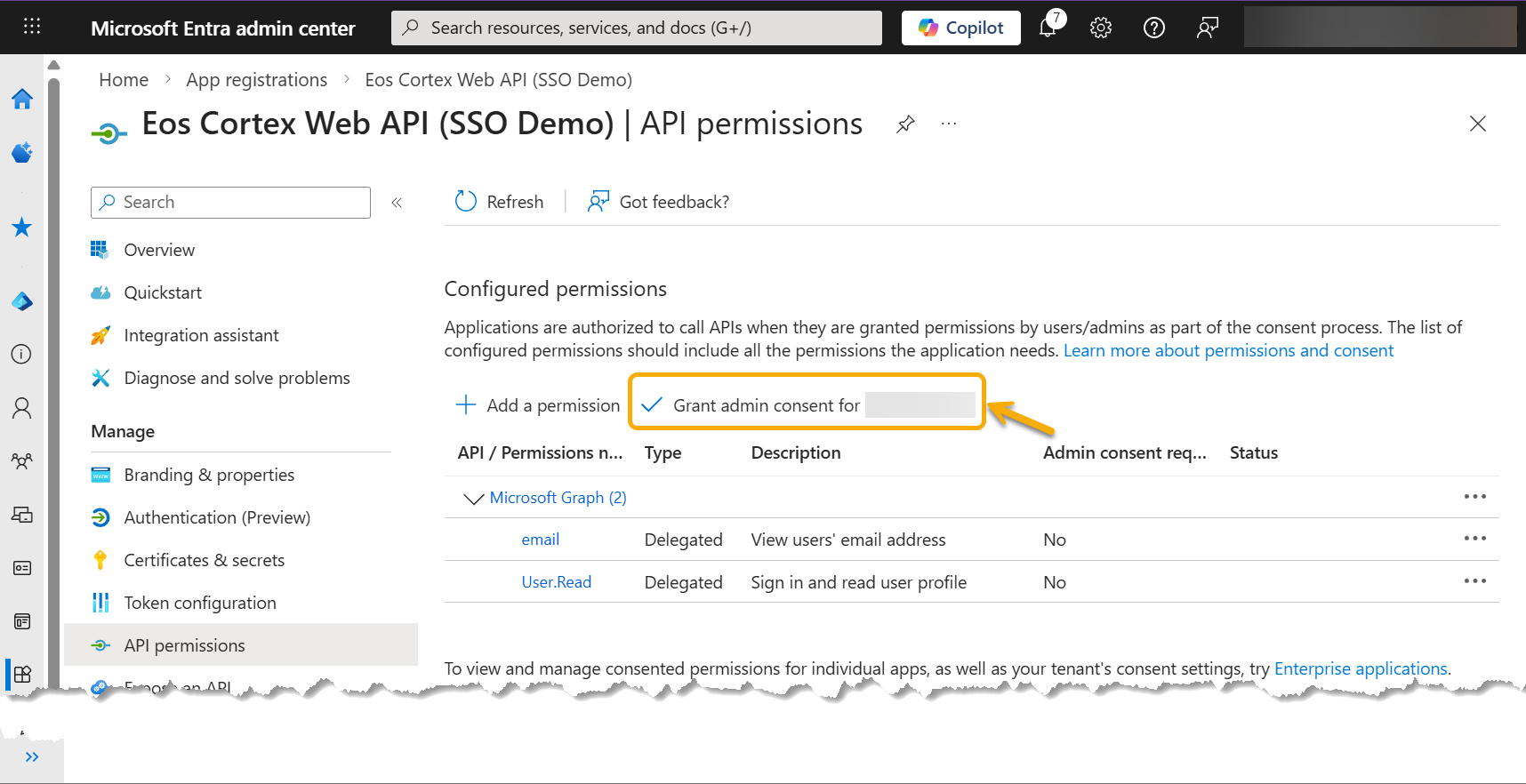
- Navigate to API permissions, under the Configure permissions section, select Grant admin consent for %company name%...
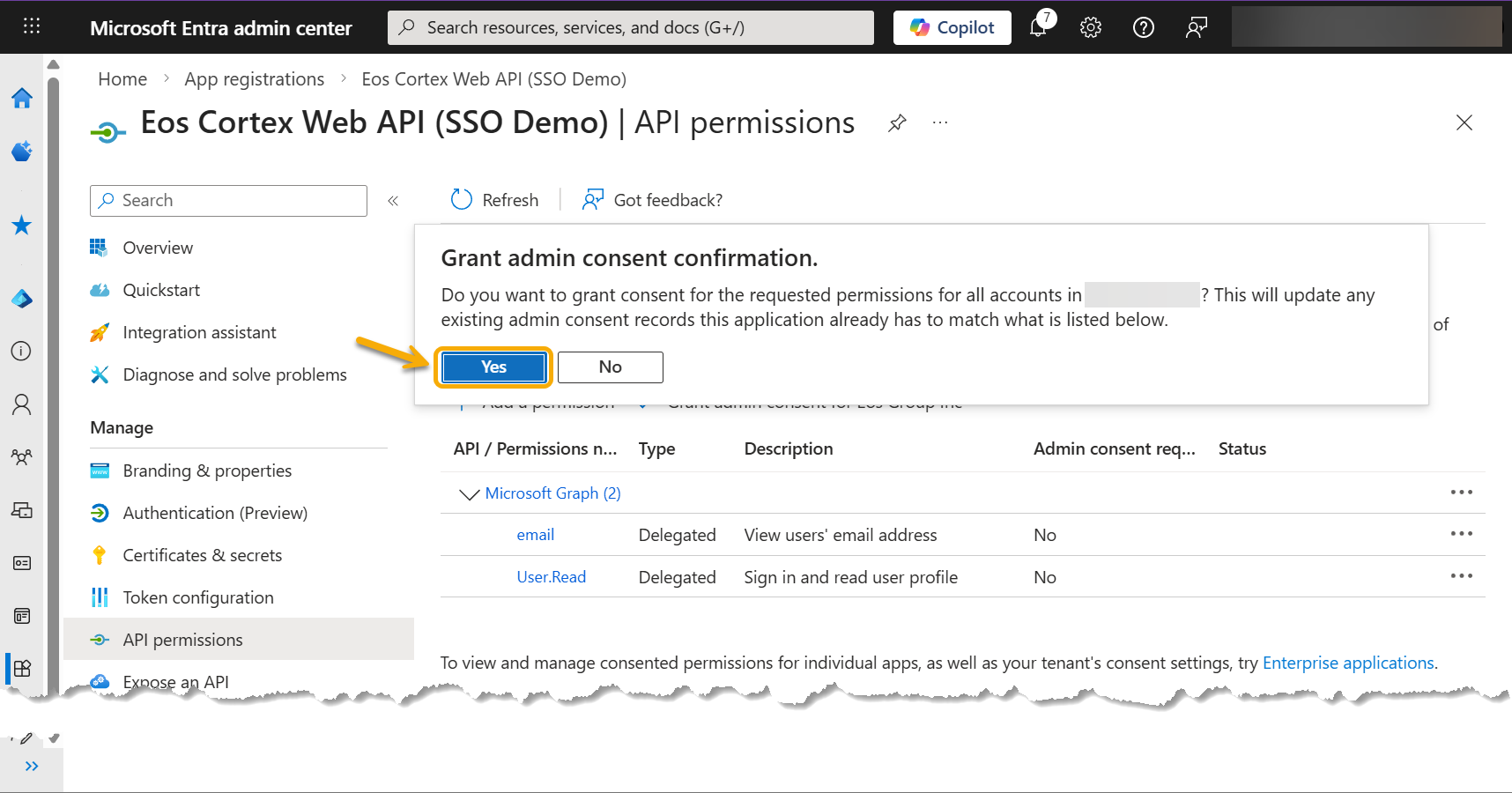
- At the Grant admin consent confirmation dialog, review the message, and select Yes.
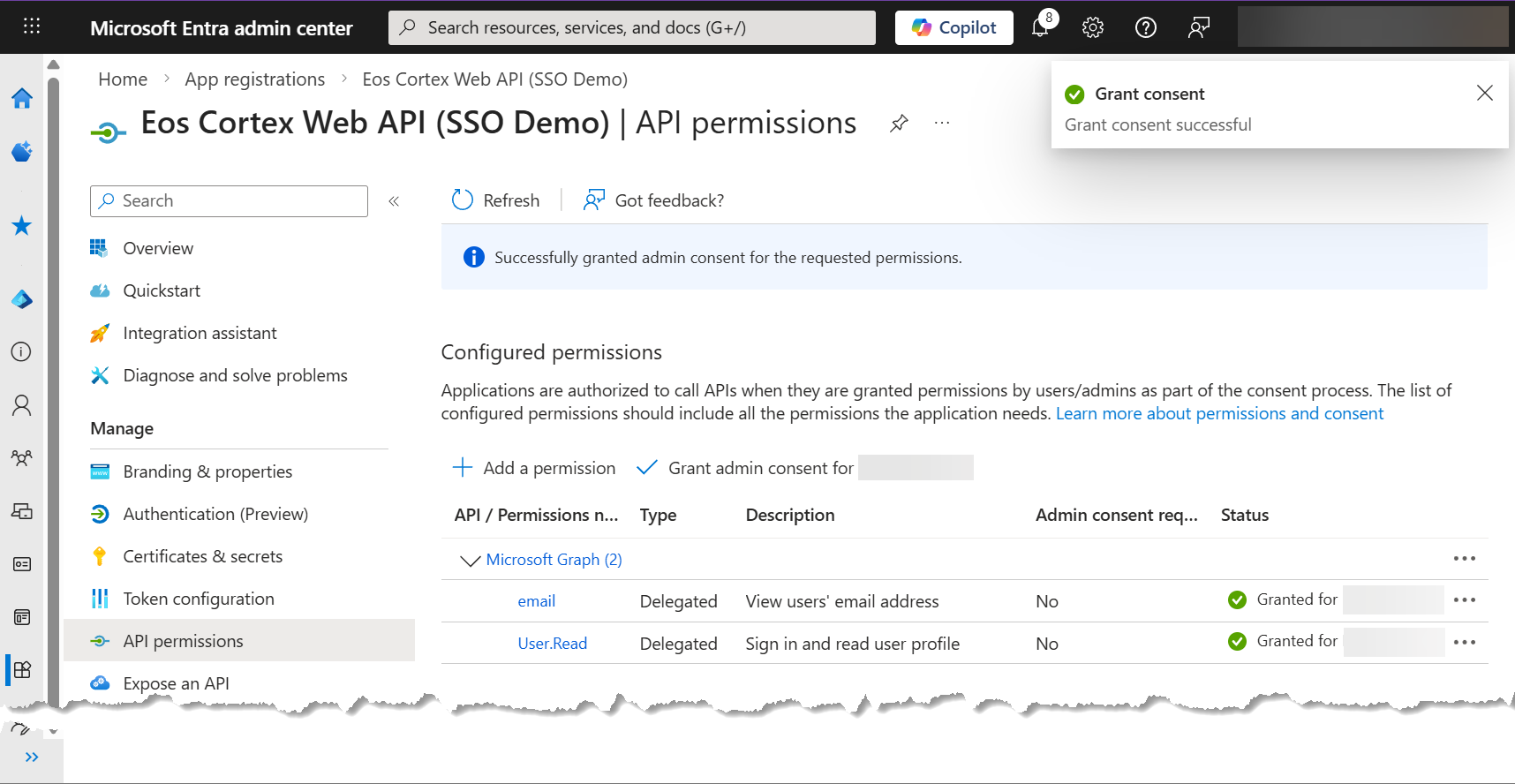
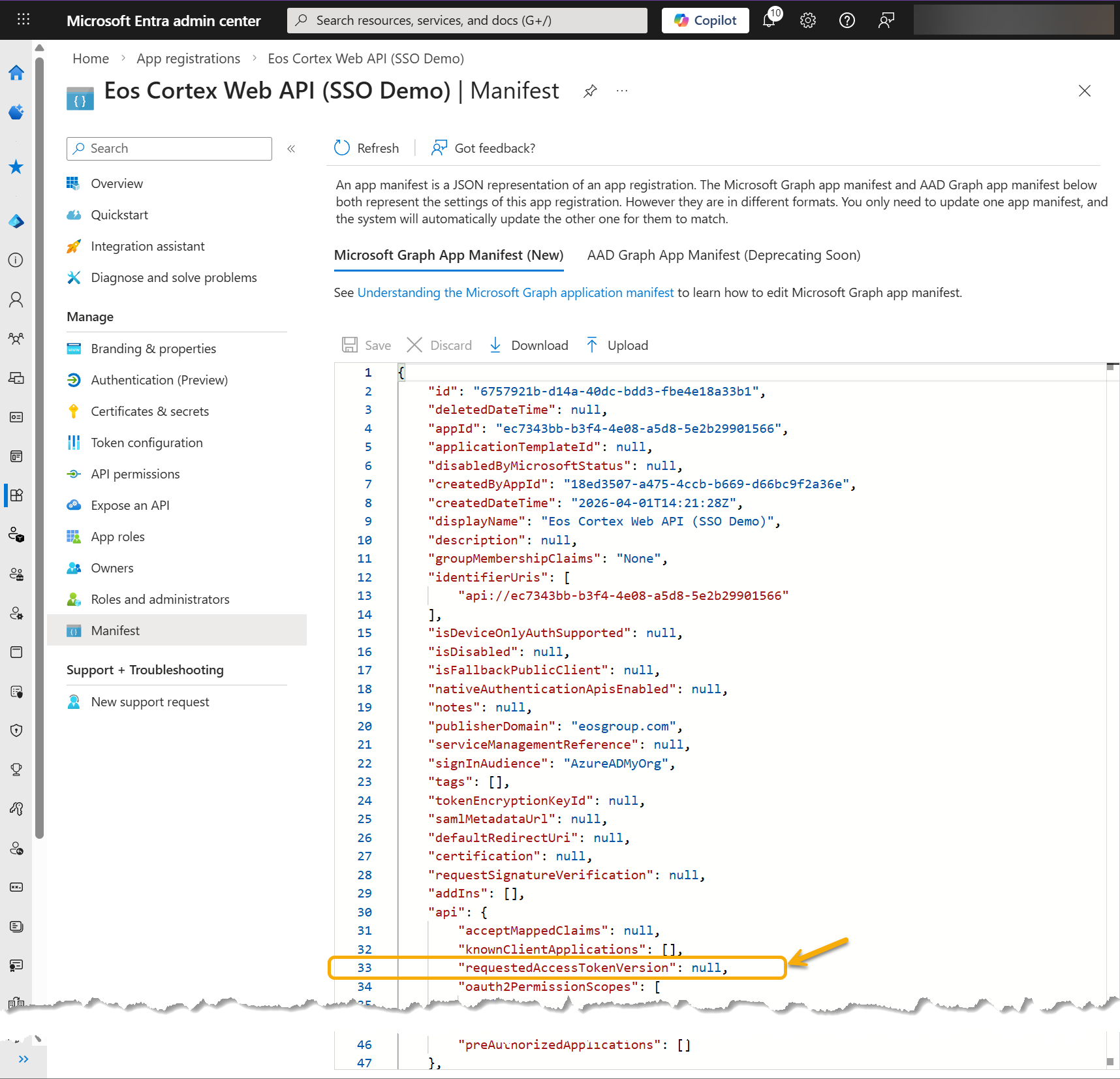
- Navigate to Manifest, and select the Microsoft Graph App Manifest (New) tab.
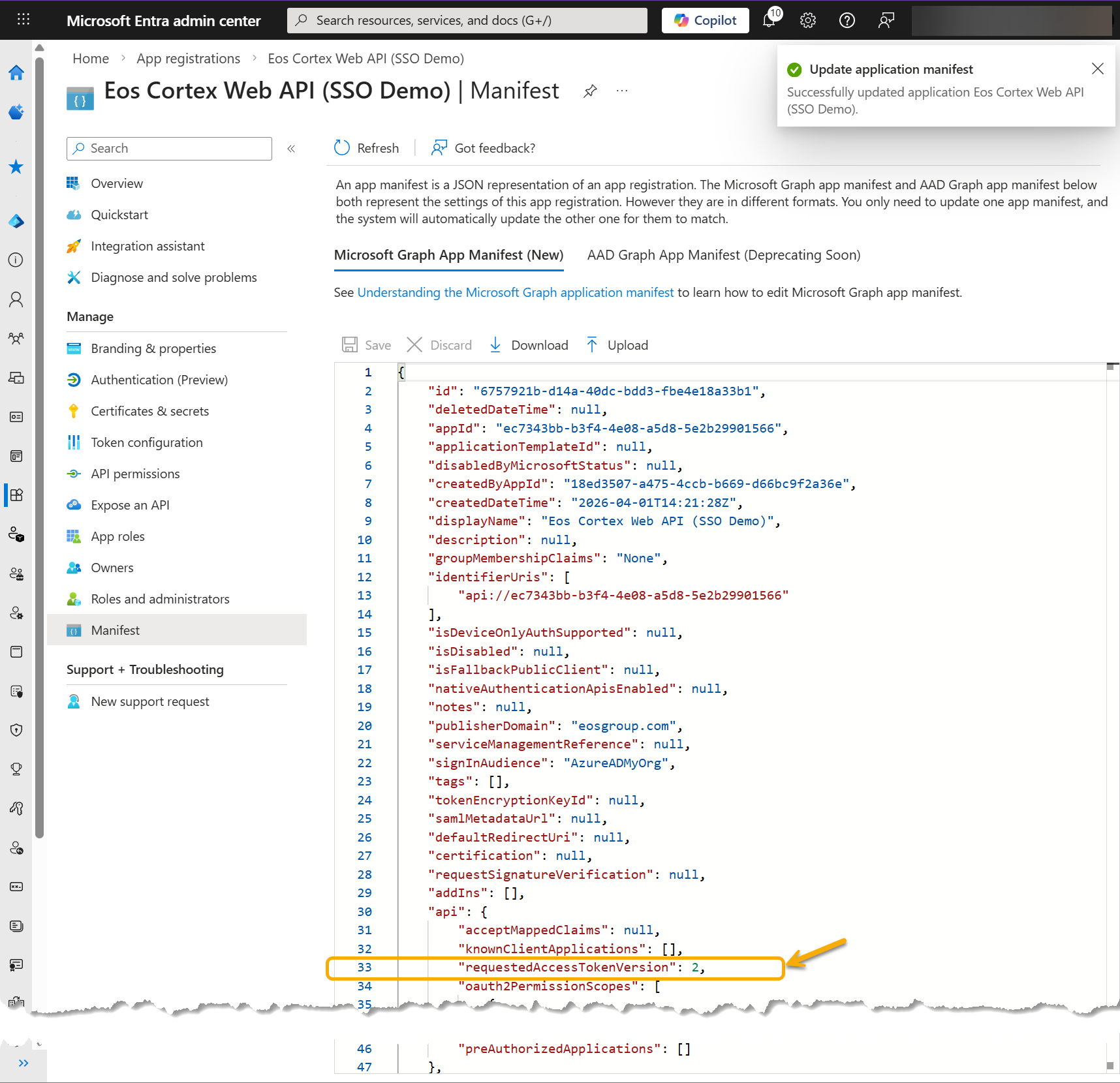
- Scroll down until you find "requestAccessTokenVersion": null, and update the 'null' to '2'. Then select Save.
3) Add permissions to the Entra app (Eos Cortex)
- Navigate back to the first Entra app created [ex: Eos Cortex (SSO Demo)]
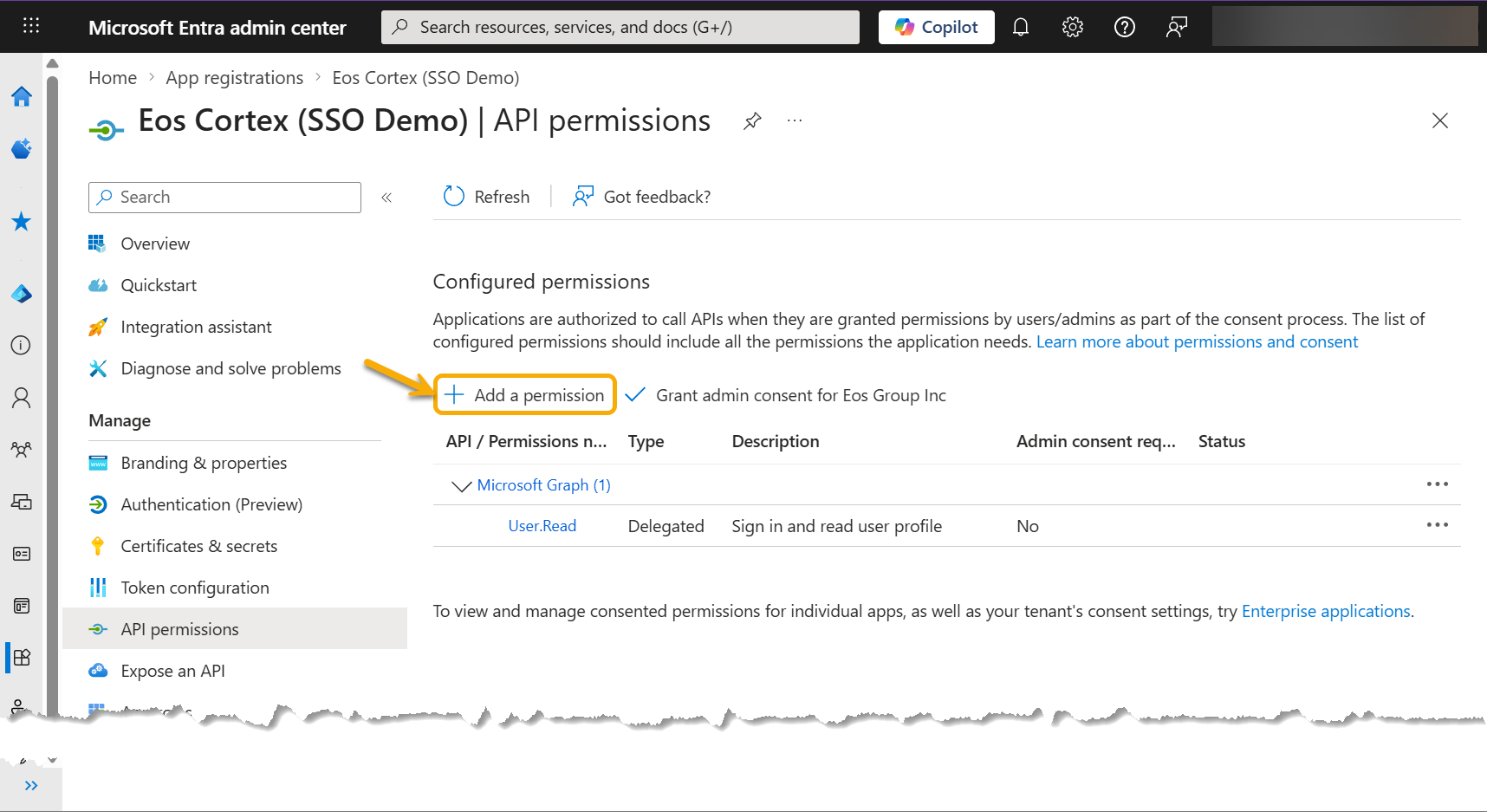
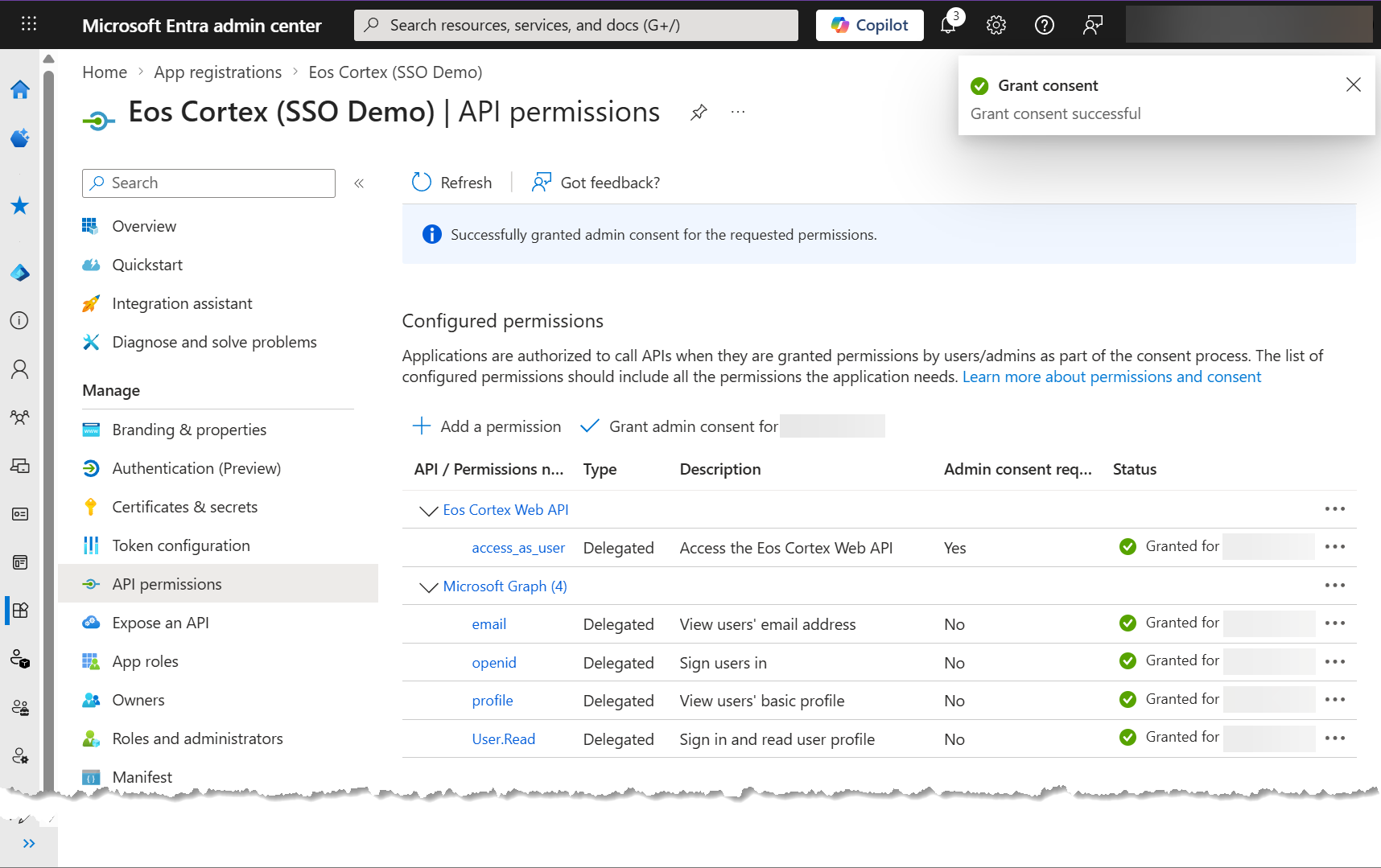
- At API permissions, select Add a permission...
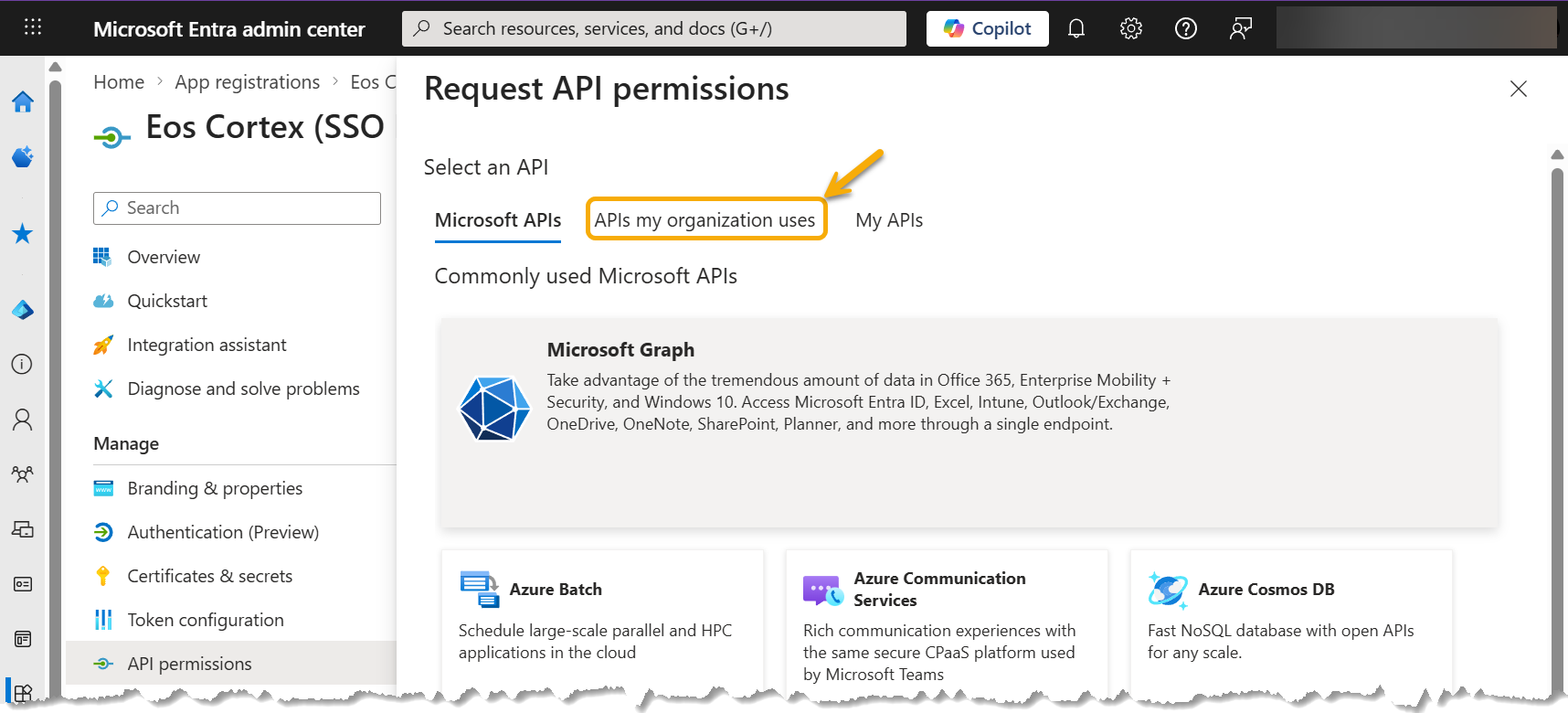
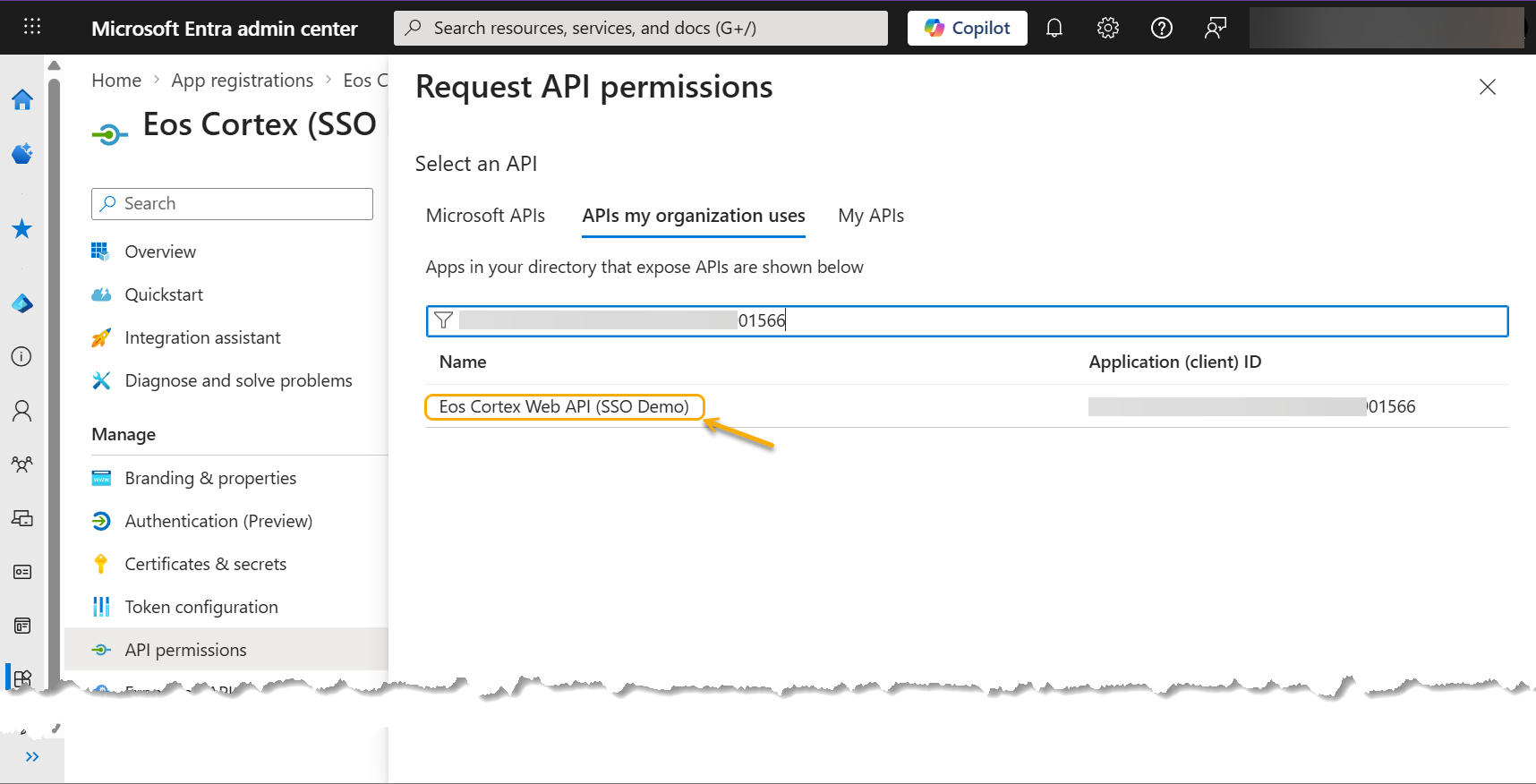
- At the Request API permissions dialog, select APIs my organization uses...
- Enter the Application (client) ID of the Web API Entra App (ex: Eos Cortex Web API or ********-****-****-****-*******01566 )
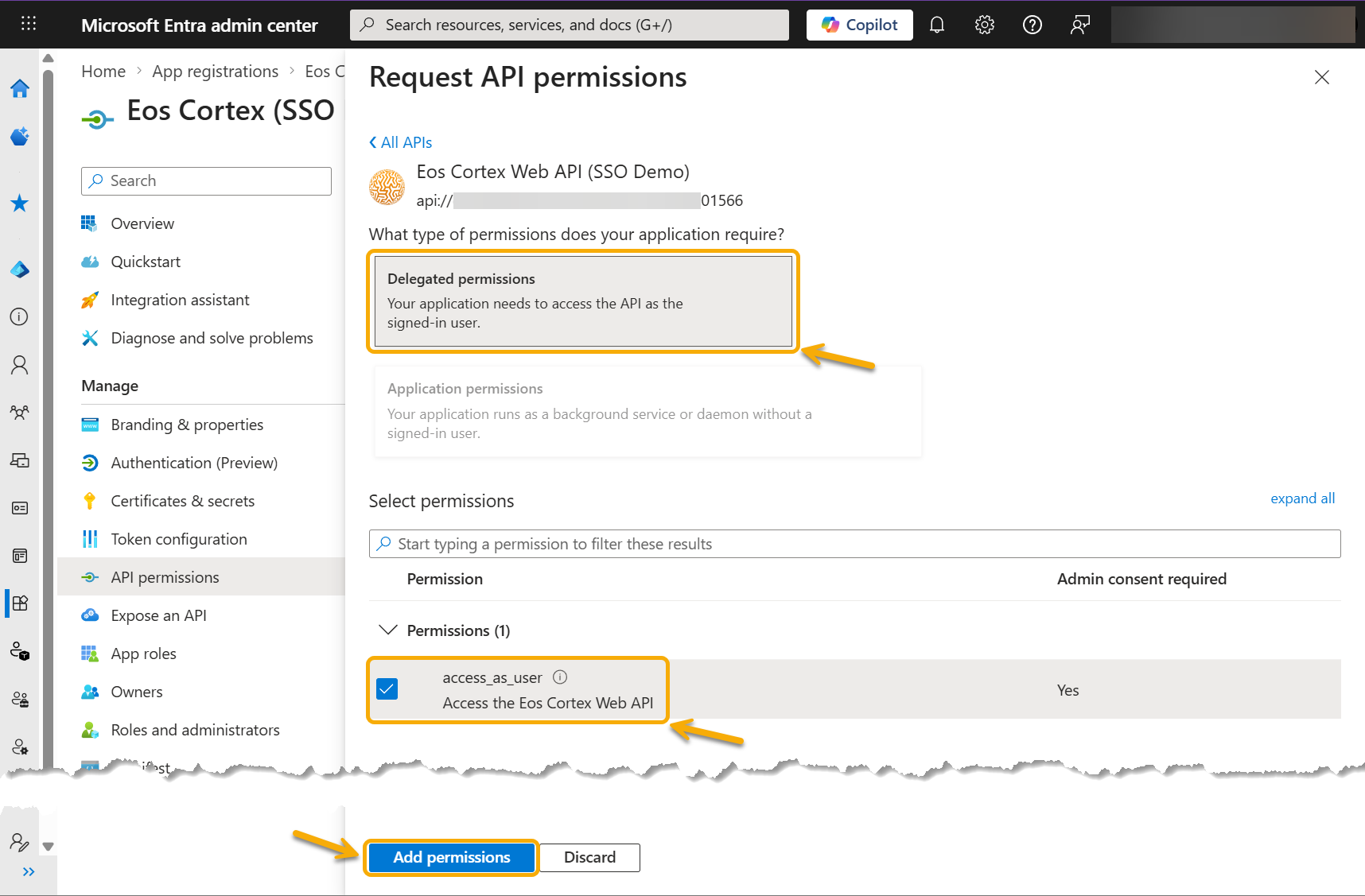
- At the What type of permissions does your application require?, select Delegated permissions, and select the box next to access_as_user... then select Add permissions.
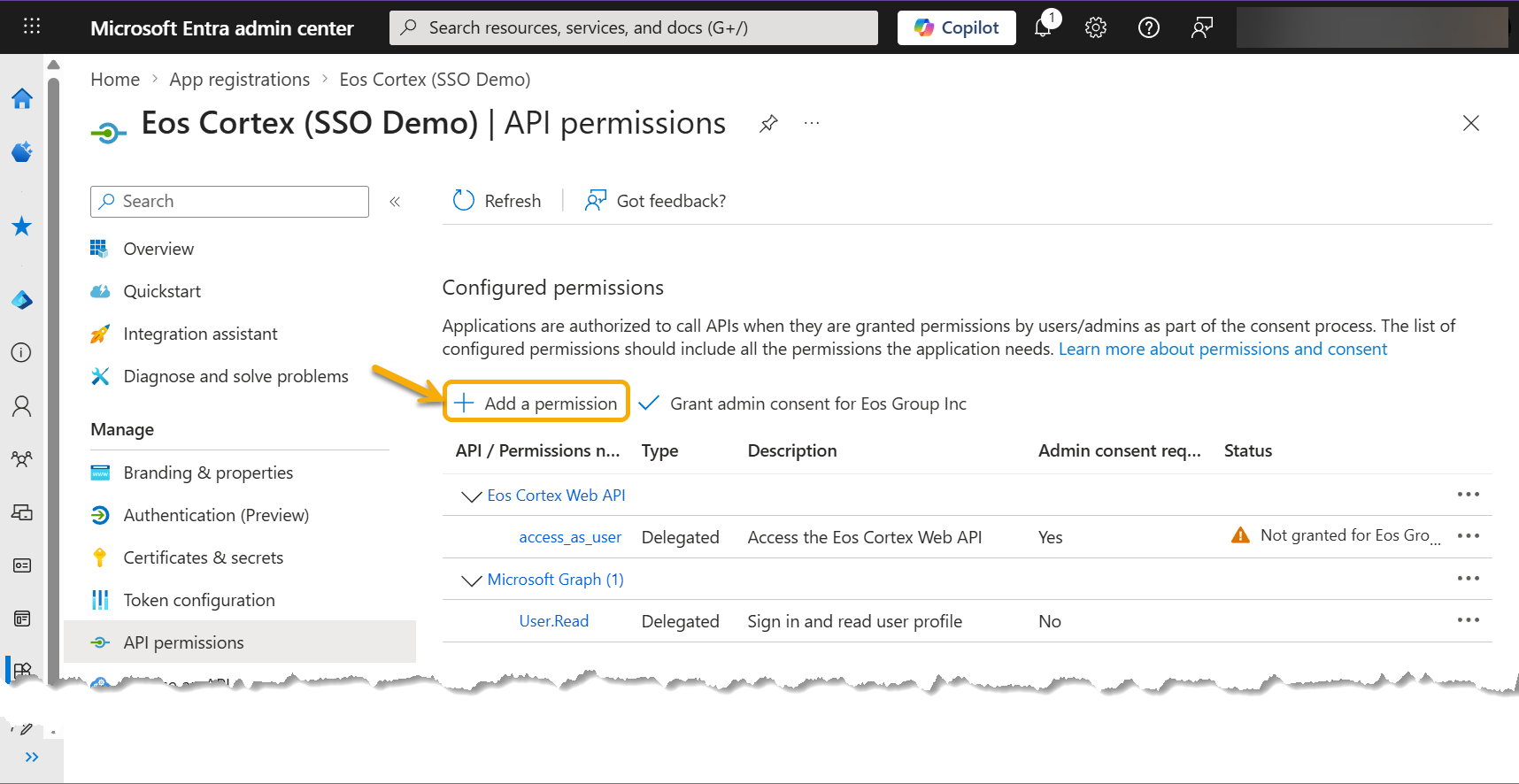
- Once again, select Add a permission...
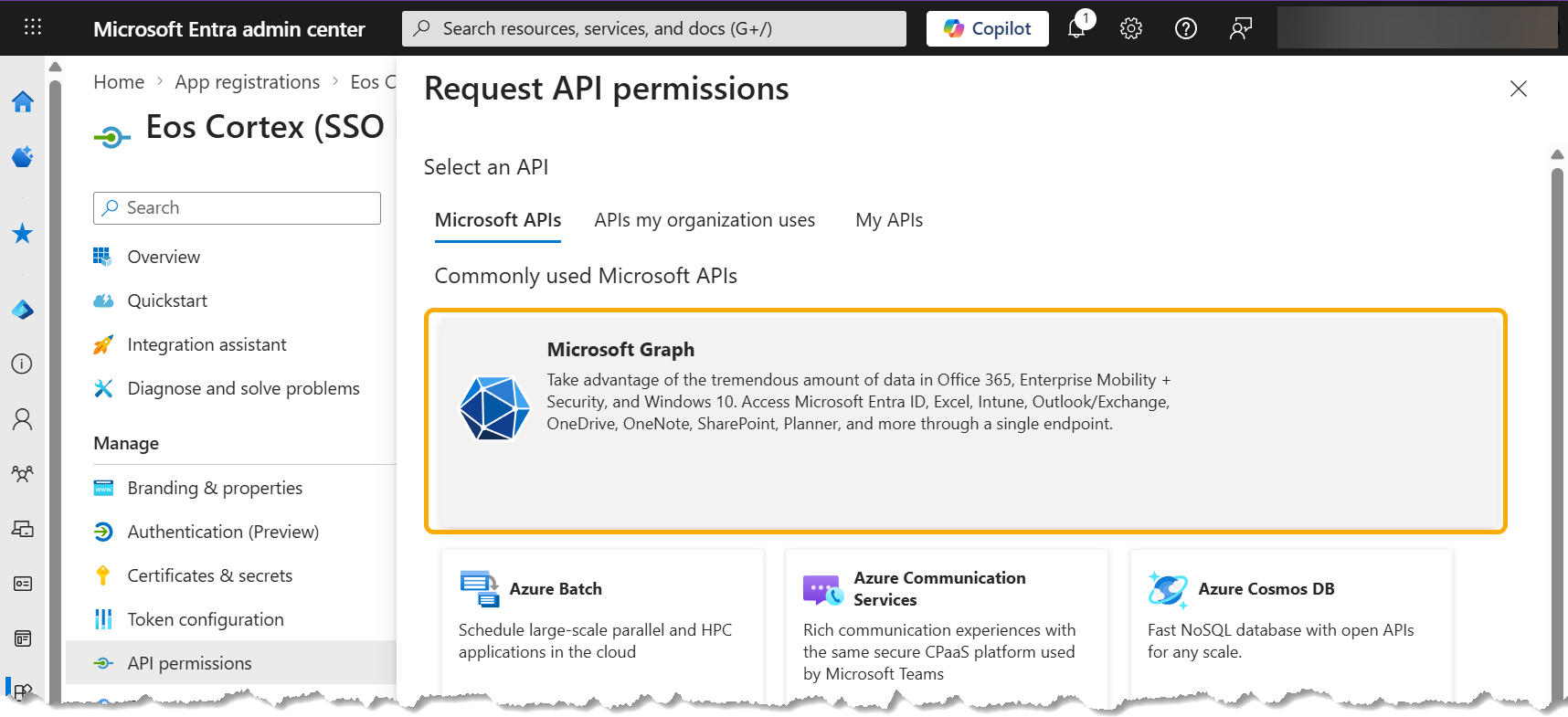
- At the Select an API dialog, select Microsoft Graph...
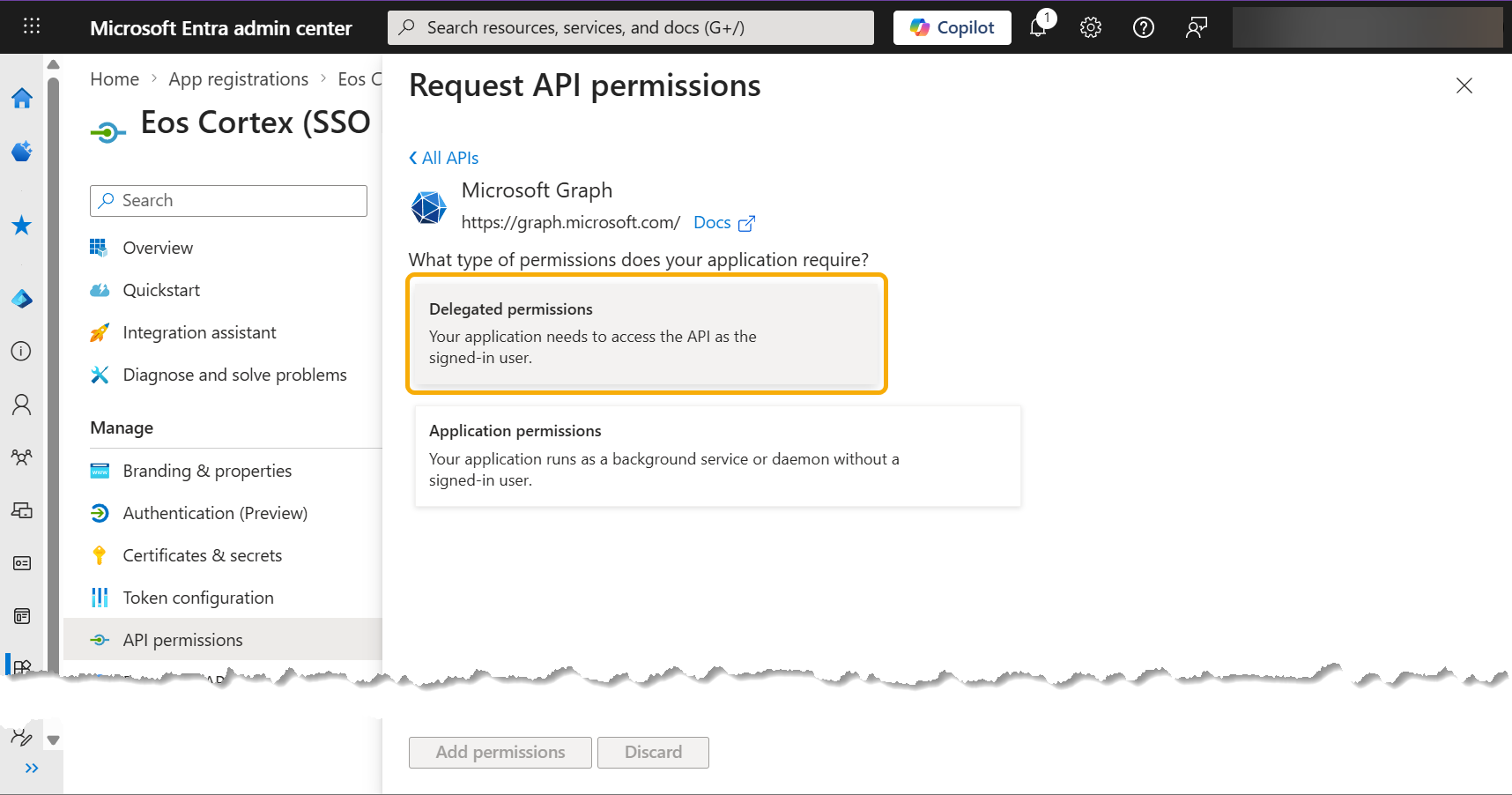
- At the Microsoft Graph dialog, at the What type of permissions does your application require?, select Delegated permissions.
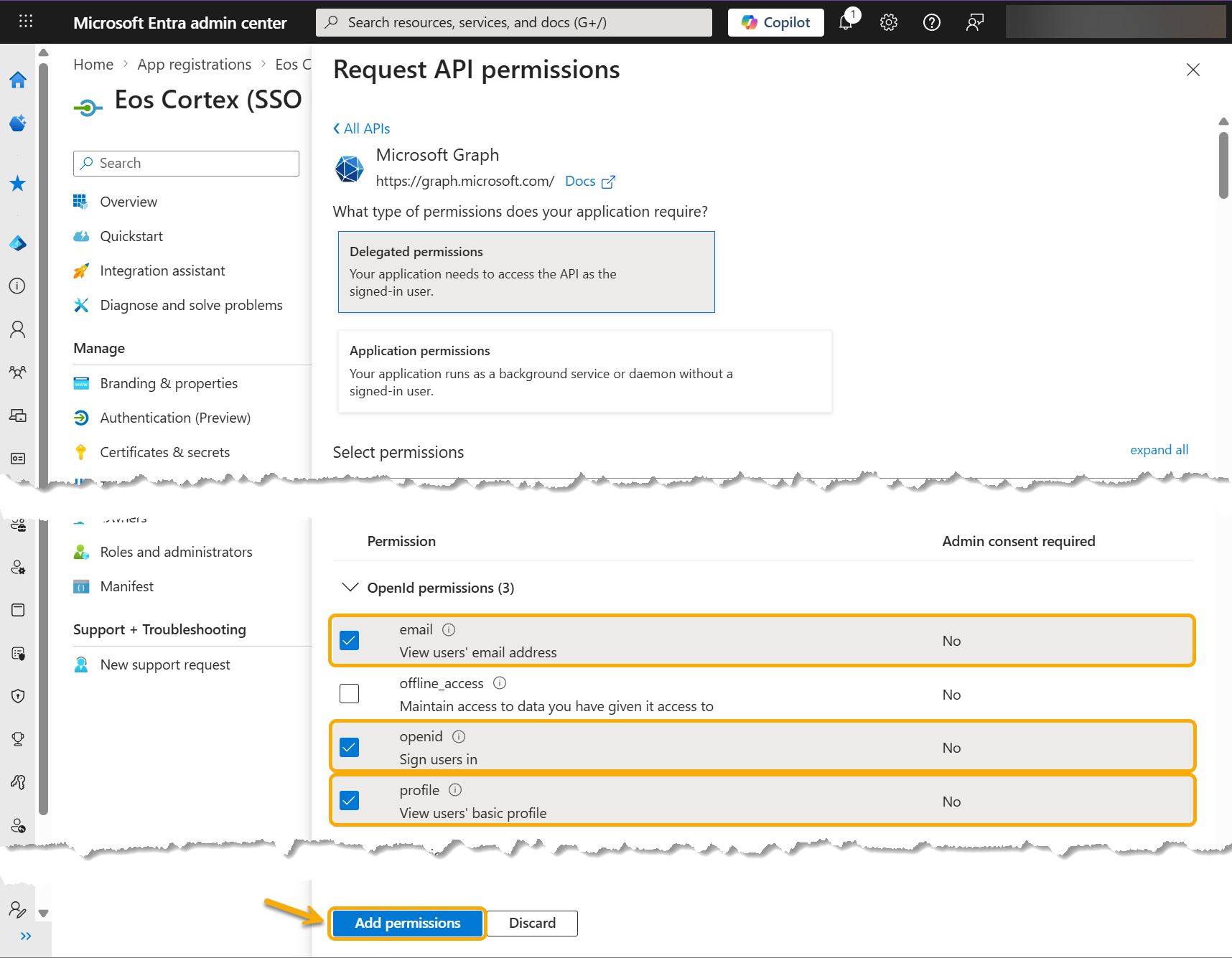
- At the Microsoft Graph dialog, select the following OpenId permissions:
- openid
- profile
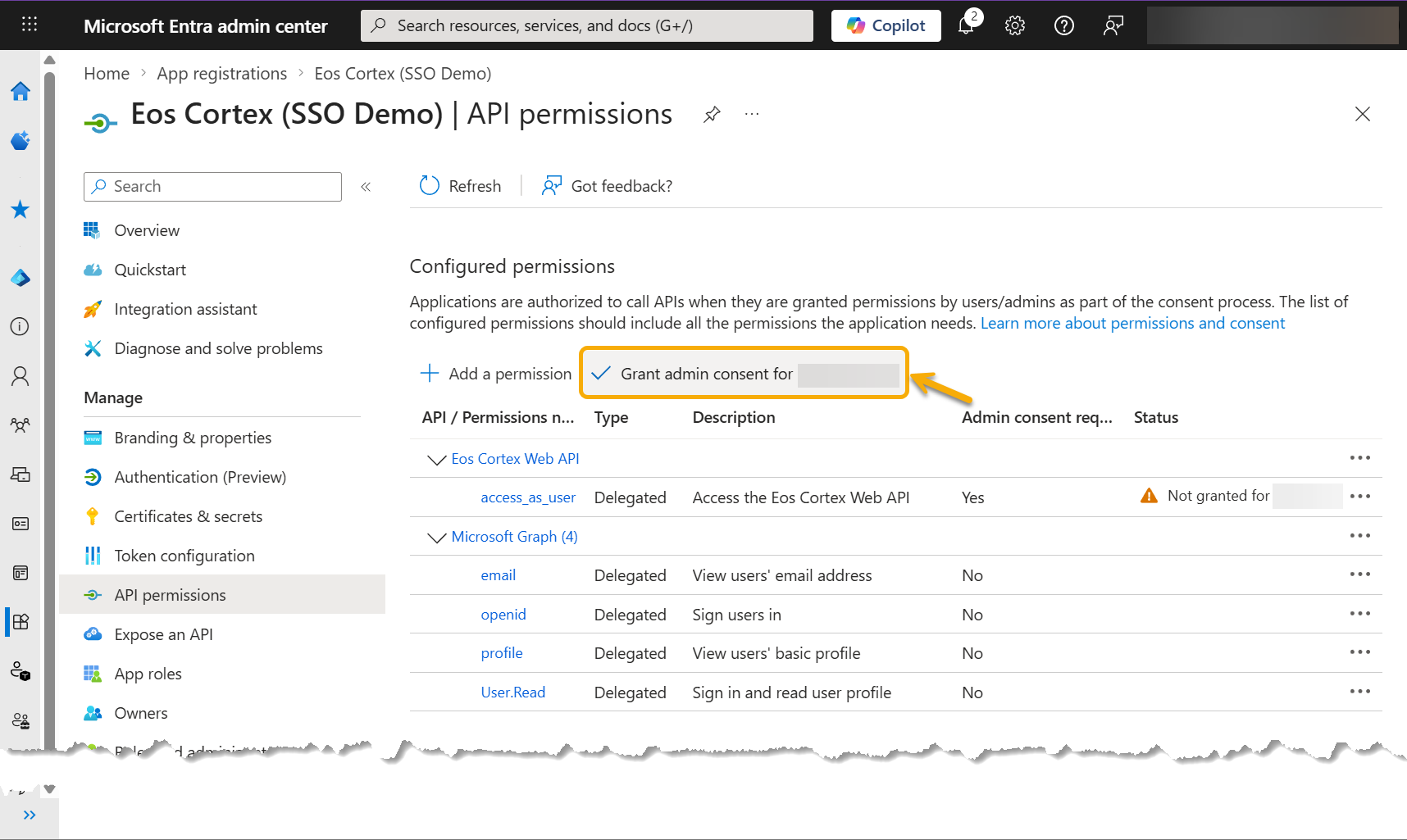
- At the Configure permissions dialog, select Grant admin consent for %company name%...
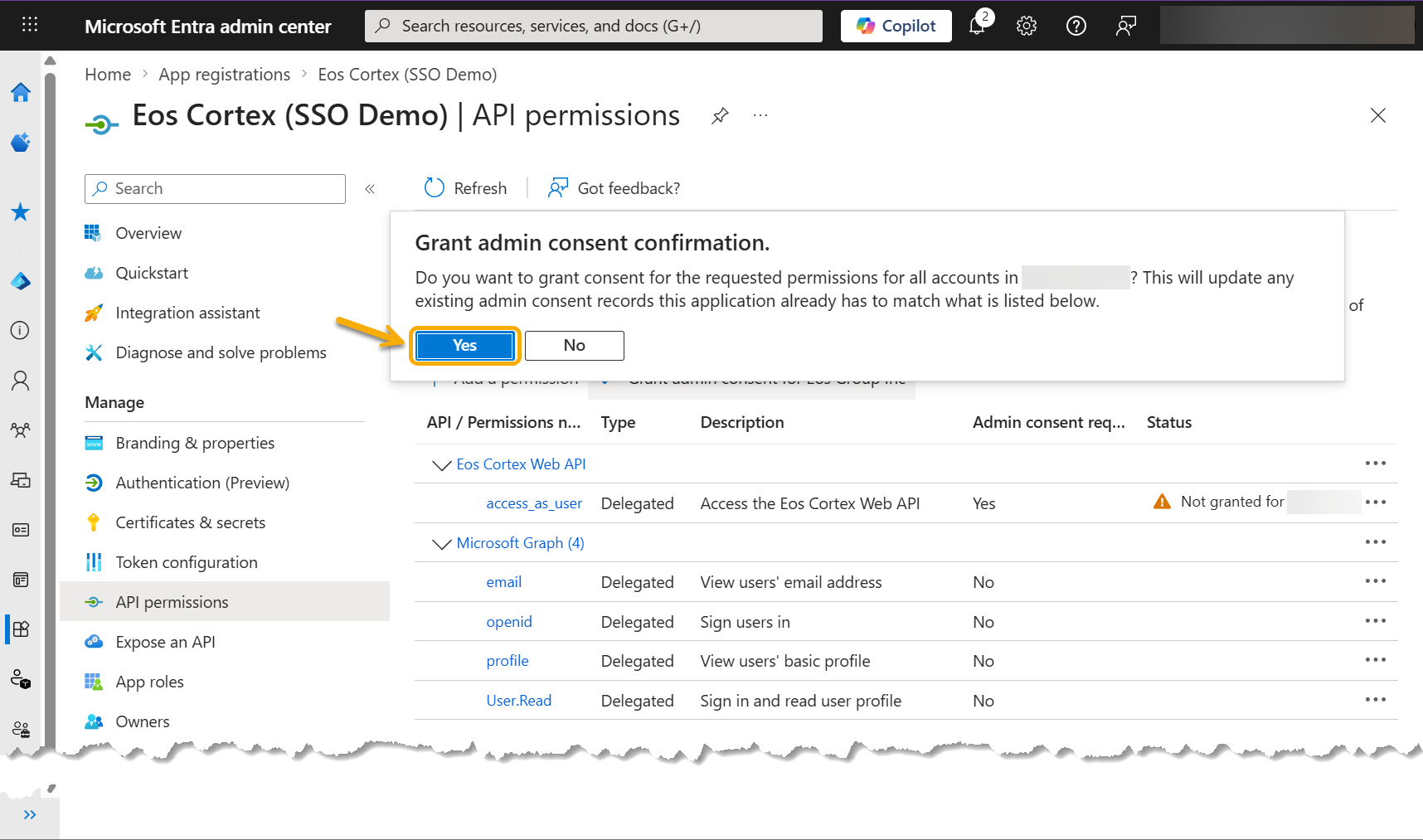
- At the Grant admin consent confirmation dialog, review the message, and select Yes.
4) Record the configuration in Eos Cortex > Security > Authentication settings, and test.
- Navigate to your Eos Cortex tenant, and log in with an account that has Security permissions.
- Navigate to Administration > Security > Authentication...
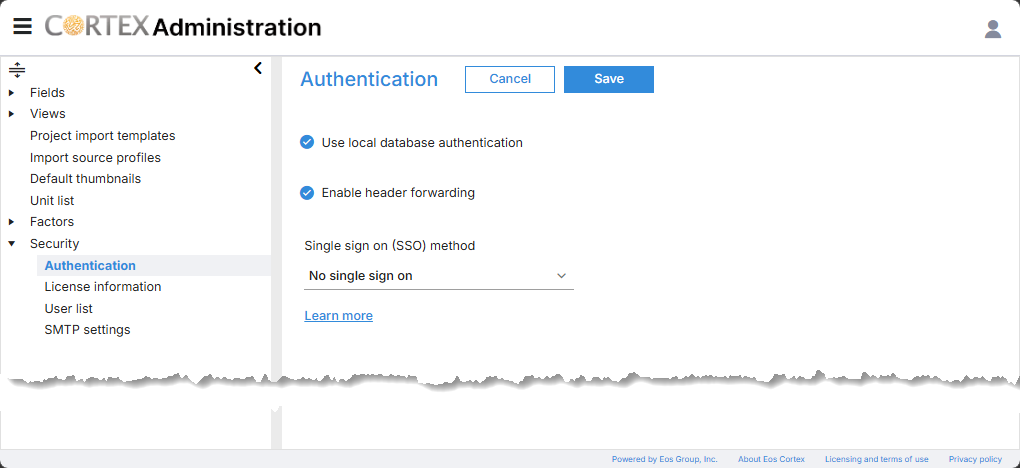
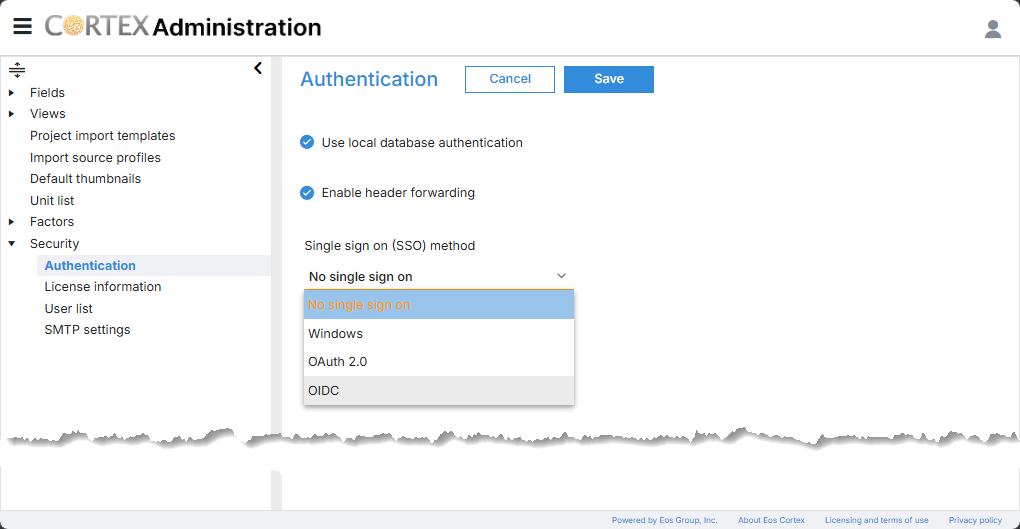
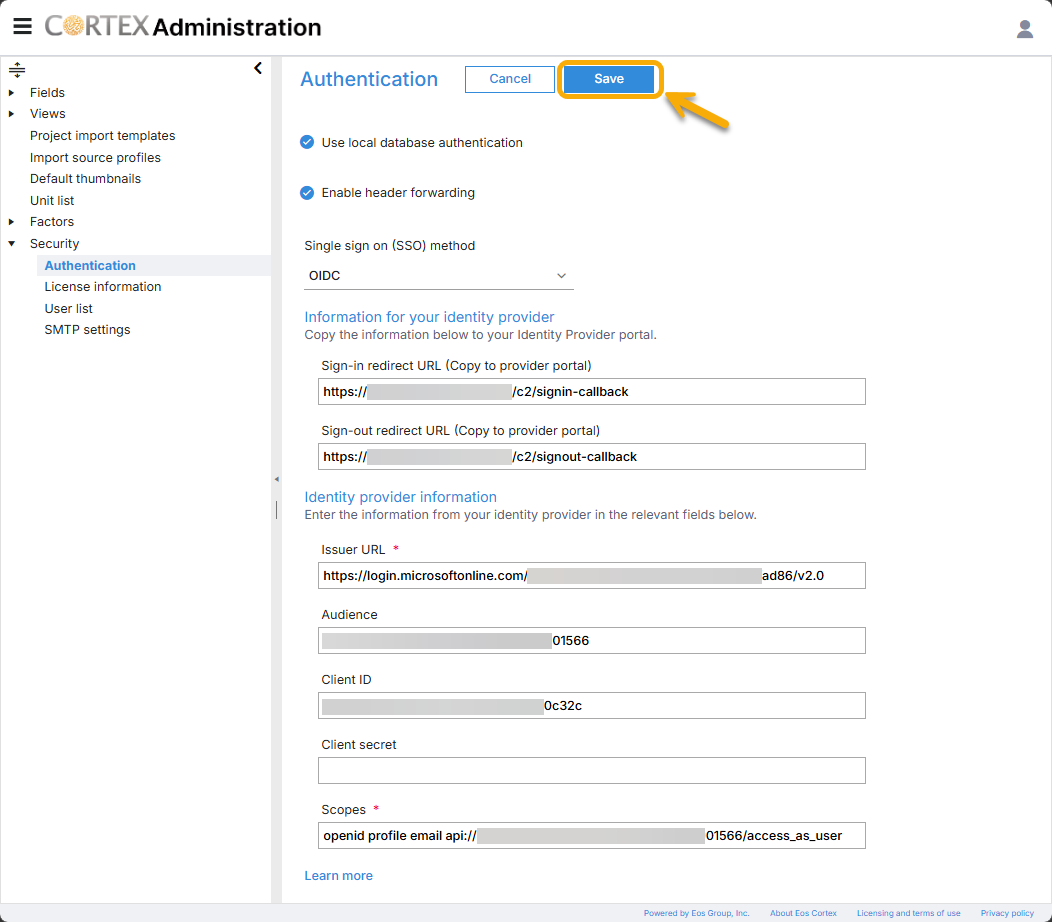
- At the Authentication dialog, select OIDC from the Single sign on (SSO) method dropdown.
- Enter the following information into the required fields, and select Save.
Issuer URL: (from your Tenant ID) https://login.microsoftonline.com/********-****-****-****-********ad86/v2.0
Audience: (from the Eos Cortex Web API Entra app): ********-****-****-****-*******01566
Client ID: (from the Eos Cortex Entra app) ********-****-****-****-*******0c32c
Client secret: [not required]
Scopes: openid profile email api://********-****-****-****-*******01566/access_as_user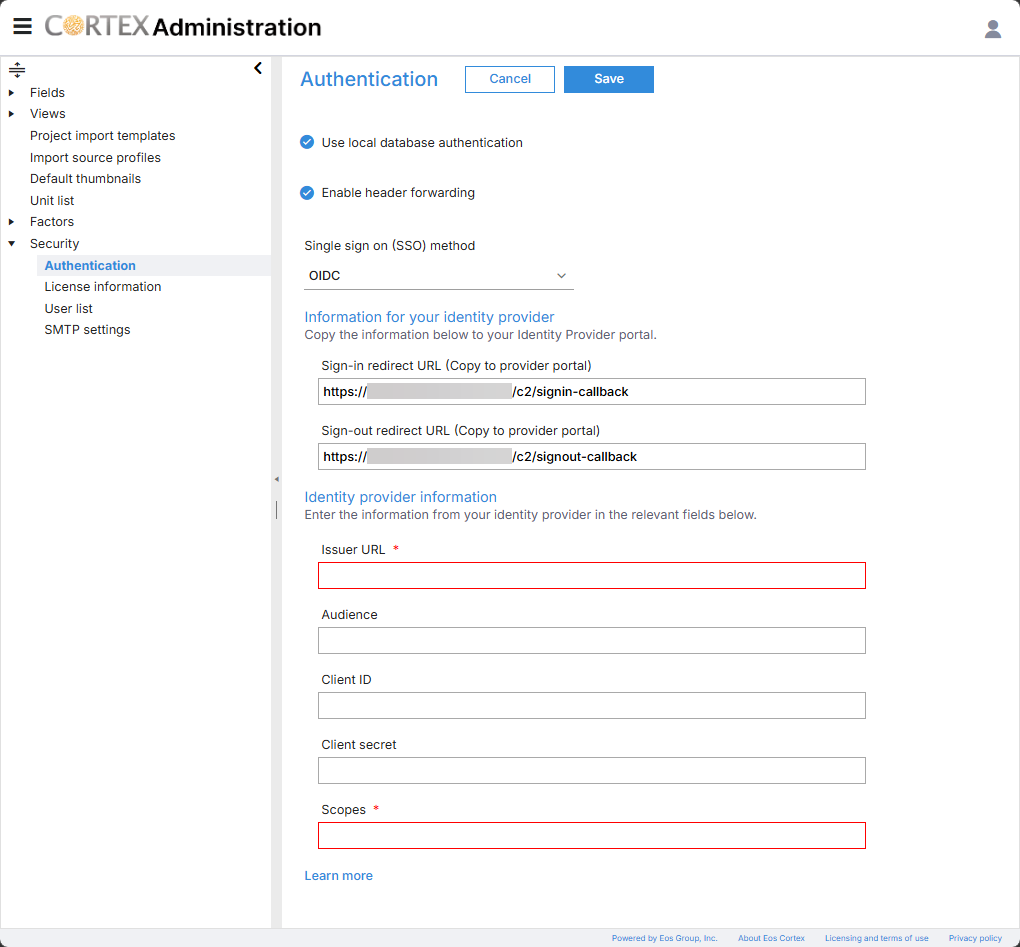
Note: We recommend leaving "Use local database authentication" enabled until the SSO settings are fully tested.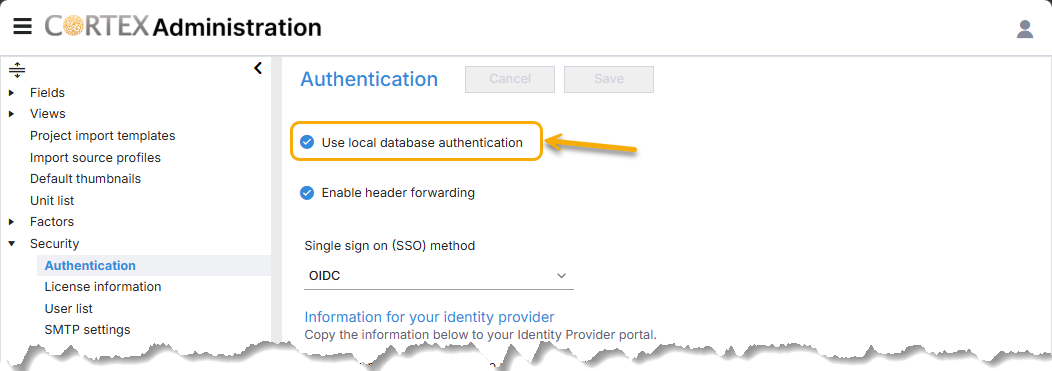
- Select Restart, to restart the Eos Cortex tenant, and the Authentication settings are saved.
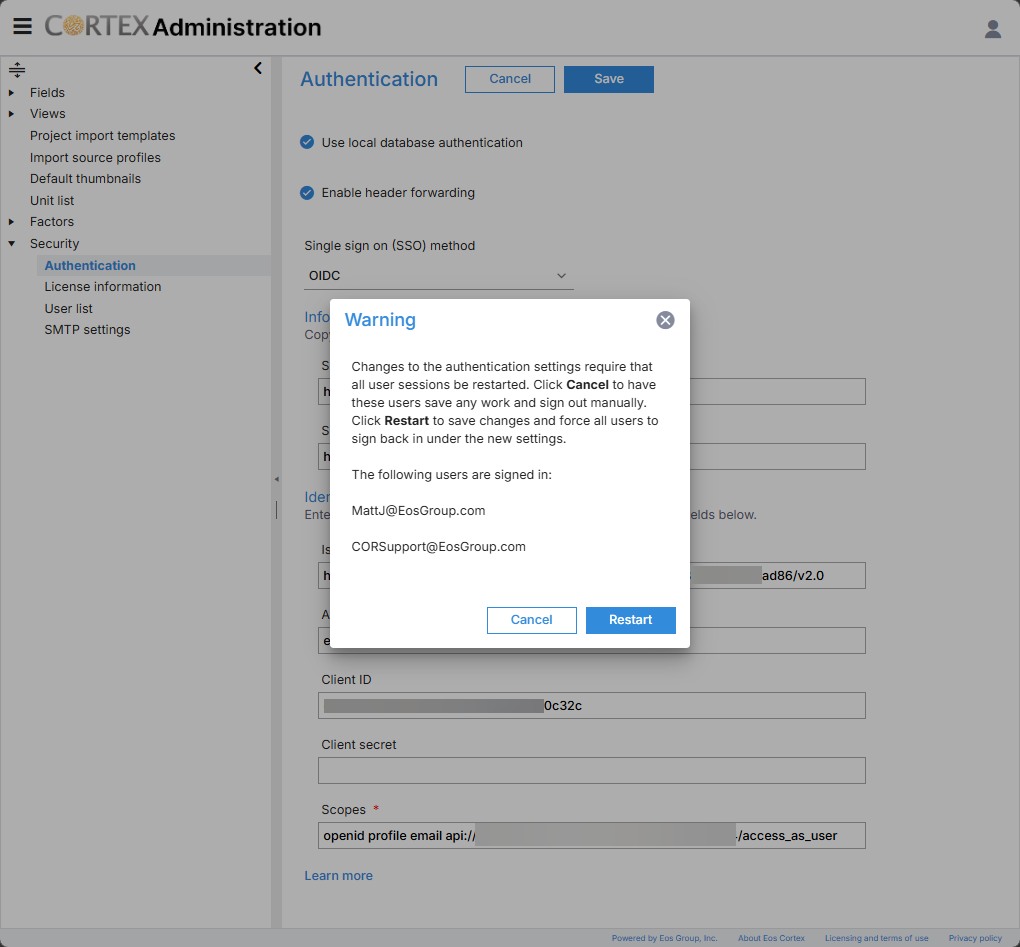
- The site will be unavailable briefly while the service restarts. After a few seconds, refresh the browser session.
example:
- Once the restart is complete, login to the Eos Cortex tenant by selecting Sign in with SSO.
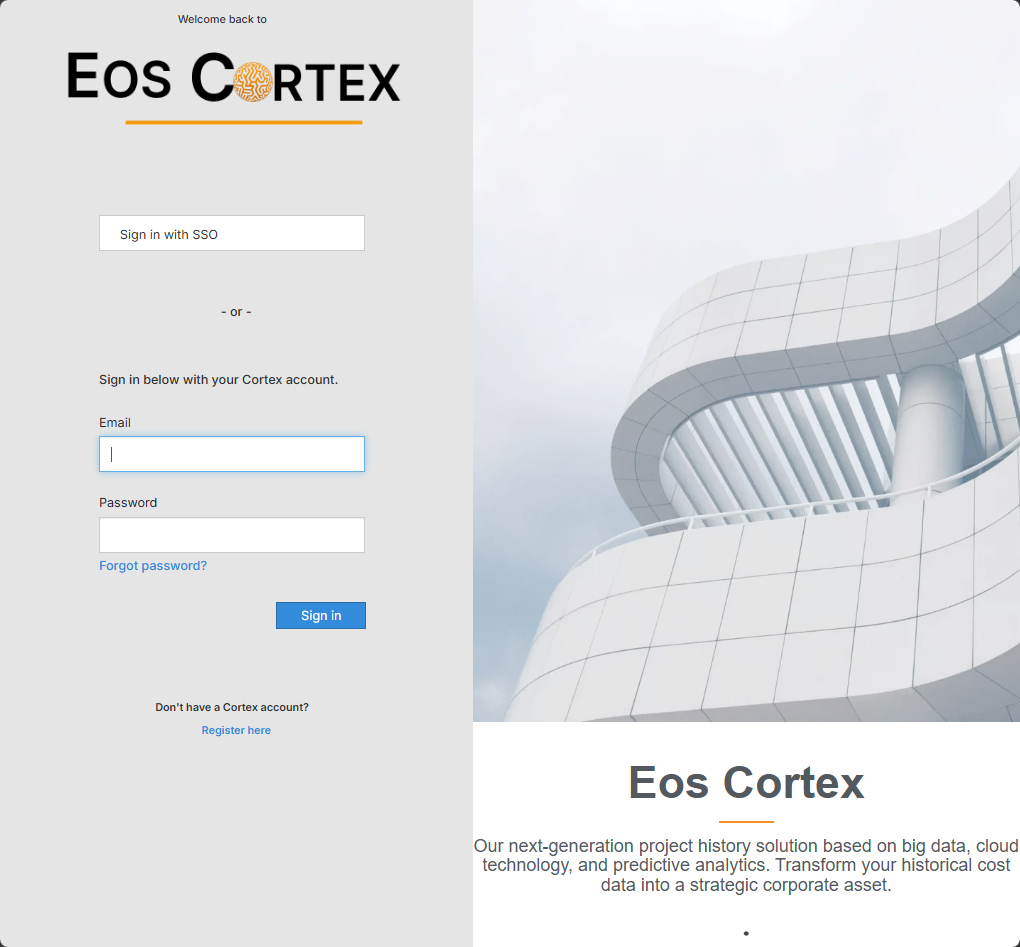
- If prompted to consent, review and accept the Permissions requested.
example: Eos Cortex (SSO Demo)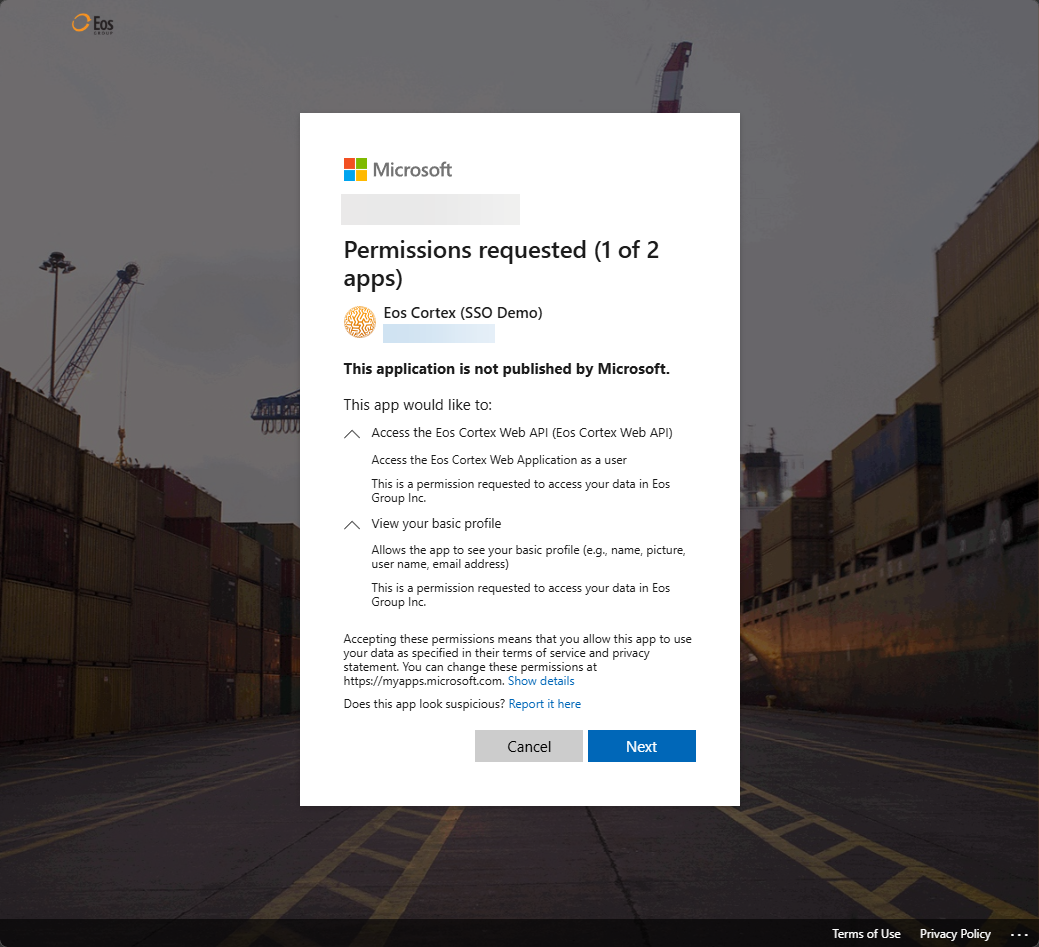
example: Eos Cortex Web API (SSO Demo)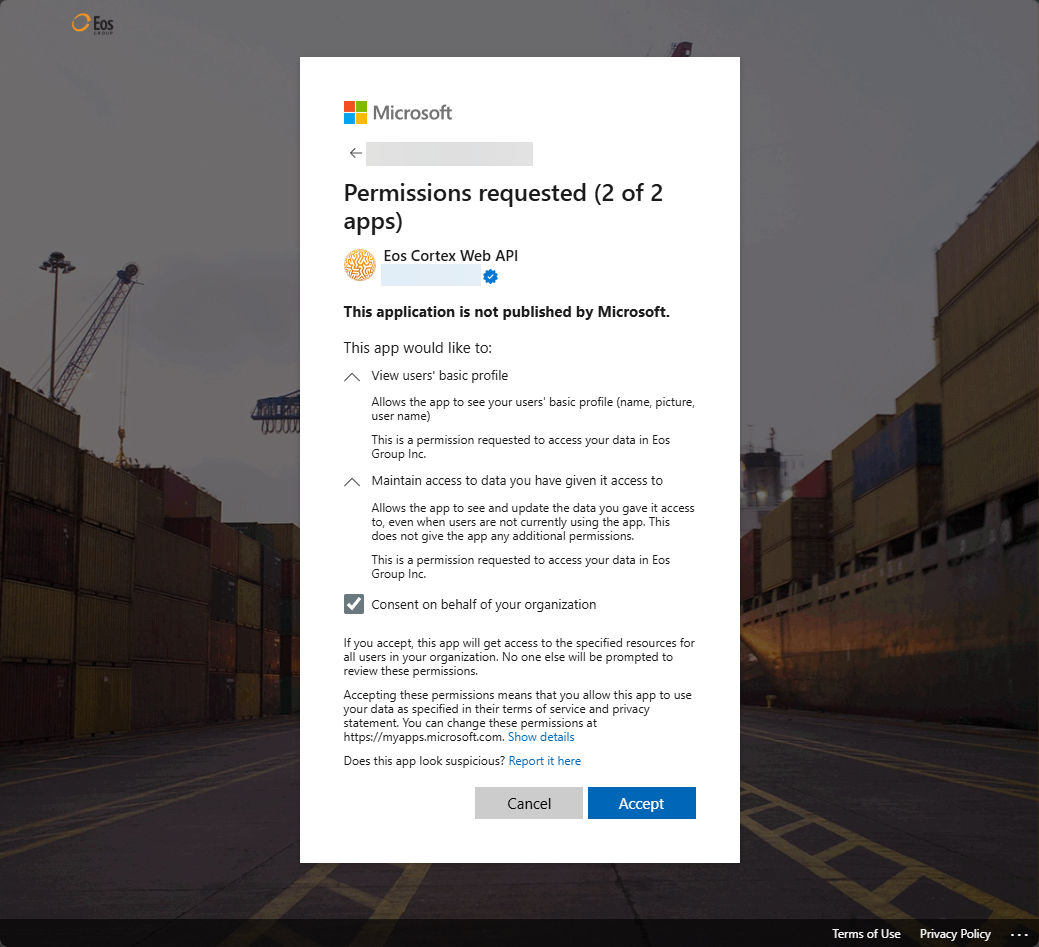
The End
Reference
- Token formats
There are two versions of access tokens available in the Microsoft identity platform: v1.0 and v2.0. These versions determine the claims that are in the token and make sure that a web API can control the contents of the token.
Web APIs have one of the following versions selected as a default during registration:
v1.0 for Microsoft Entra-only applications...
v2.0 for applications that support consumer accounts...
Token ownership
An access token request involves two parties: the client, who requests the token, and the resource (Web API) that accepts the token. The resource that the token is intended for (its audience) is defined in the aud claim in a token. Clients use the token but shouldn't understand or attempt to parse it. Resources accept the token.