
Background
Eos Navigator (Navigator) utilizes two SQL accounts (EosDBO and EosRPT) that are created during the initial installation (Navigator v3.0 or later). See the referenced Eos Navigator Installation Guide (Version 3.0.406) here (page 8). These two SQL Logins are created to allow users to authenticate into the application without requiring SQL logins for each user. This document outlines the locations where these SQL logins are referenced and provides instructions on how to update or otherwise modify them.
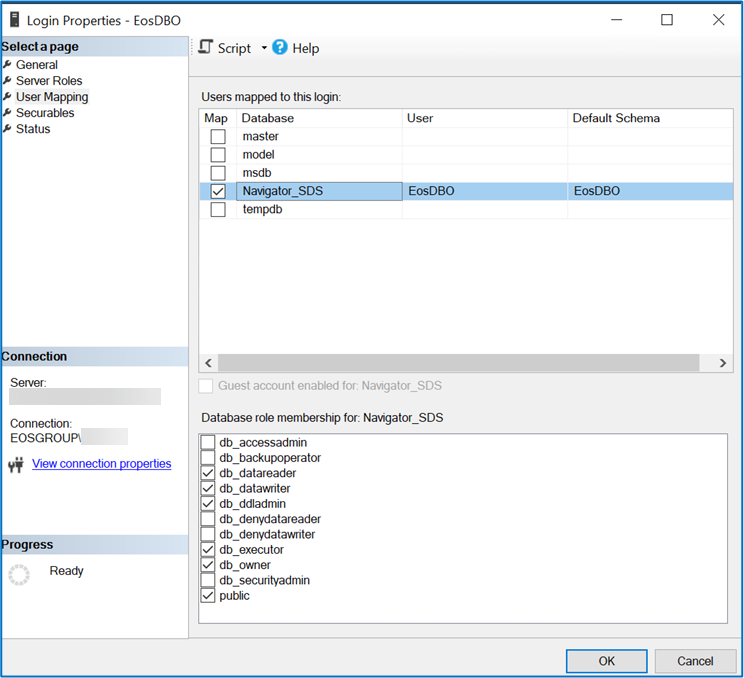
The default SQL Logins (EosDBO and EosRPT) are granted the following Server Roles and permissions at the Database default Schema and Role Membership when created at installation. See the Eos Navigator Installation Guide (v4.3), Appendix D: EosDBO SQL authentication account (here).
Server Roles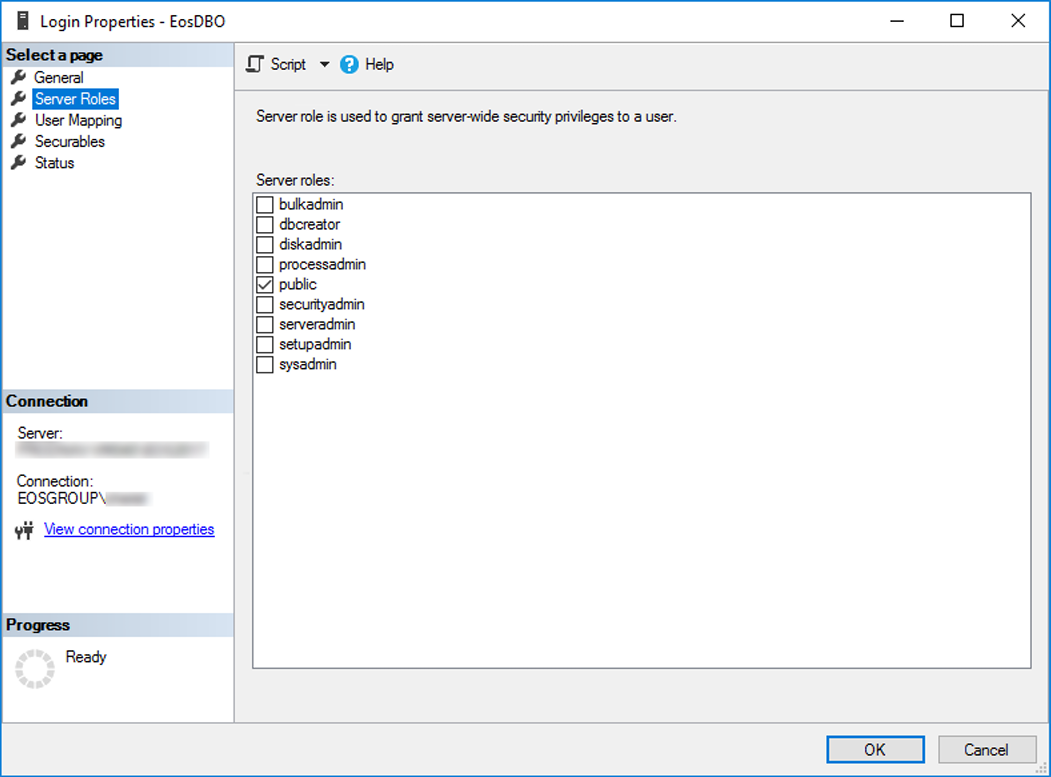
User Mapping
Prerequisites
- Navigator v3.0 or later
- SQL Server Management Studio (SSMS) [at the SQL Server]
- Administrator rights to modify configuration files through a text editor [at the Workstation or Session Hosts where Navigator is installed.]
Steps
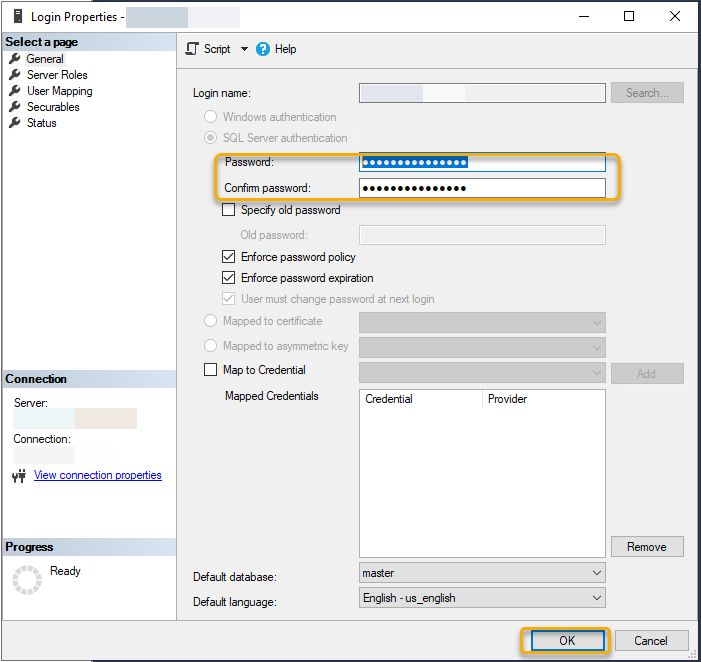
- At the SQL Server, using SSMS, change the SQL Login password by navigating to the Login Properties > General page of the SQL instance and updating the password.
- At the Workstation (or Session Host), navigate to and open the Password Encryptor application.
Path = %Program Files%\Eos Group\Navigator\EosGroup.Navigator.PasswordEncryptor.exe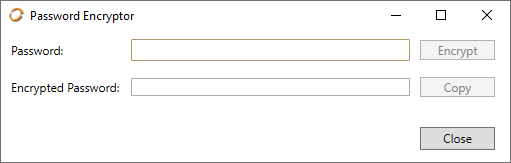
- In the Password field, enter the new password and click the Encrypt button.
- Click the Copy button to copy the Encrypted Password to the clipboard (for use in the following steps).
- Open the EosGroup.GT.Navigator.dll.config file with a text editor (with elevated Administrator privileges).
Path = %Program Files%\Eos Group\Navigator\EosGroup.GT.Navigator.dll.config - With the .config file open, update the following line: <EncryptedPasswordHere>
<add name="EosConnectionString" connectionString="Data Source=<ServerHostName>;Initial Catalog=Navigator;Integrated Security=False;User ID=EosDBO;Password="<EncryptedPasswordHere>";MultipleActiveResultSets=True;Encrypt=False;TrustServerCertificate=True" providerName="System.Data.SqlClient" />
- Save the modified .config file.
Note: If also updating the SQL login for Sage Estimating, see this solution.