
Check the Sage Database Editor
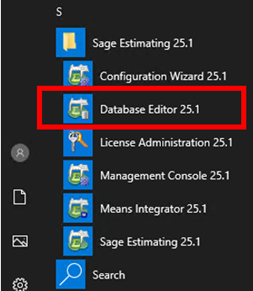
- Open Sage Estimating Database Editor.
Start > Sage Estimating > Database Editor
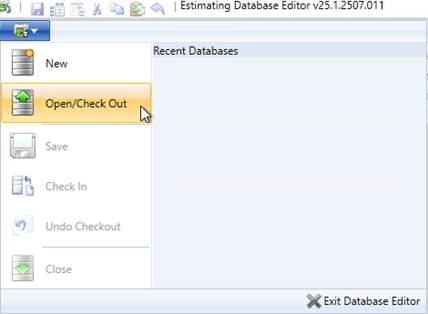
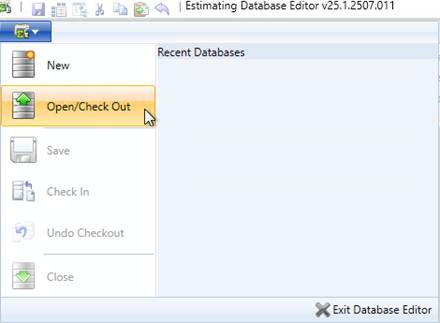
- From the application menu, select Open/Check Out.
- Review the list of standard databases.
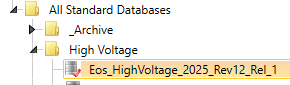
- Look for a red check mark next to the database name.
- Red check mark: The database is currently checked out.
- No red check mark: The database is not currently checked out.
- Green check mark: A green check mark can be ignored. This means the database is designated as the default database in Estimating Management Console. It does not mean that the database is checked out.
If the Database Is Checked Out (red check mark is displayed)
If the database needs to be retained with its current changes, the person working in the database should check it in before the server migration.
In Database Editor:
- Save any changes.
- On the Home tab, select Check In.
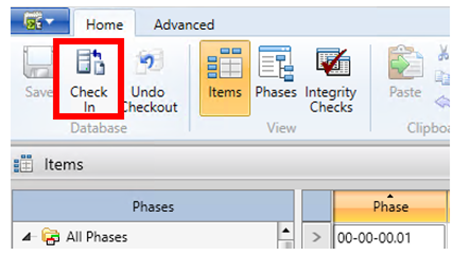
You can also select Check In from the application menu. Checking in saves the changes permanently and releases the checked-out database. Either way is sufficient.
Note: Be Careful with "Undo Checkout"
Sage Database Editor also provides an Undo Checkout option.
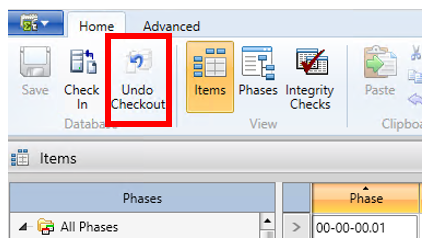
Undo Checkout removes the checkout without saving the changes made to the checked-out copy. Any changes made since the database was checked out will be lost.
Important: If you are unsure whether changes have been made to a checked-out database, do not use Undo Checkout. Have the user who was maintaining the database review and check-in their changes first.