
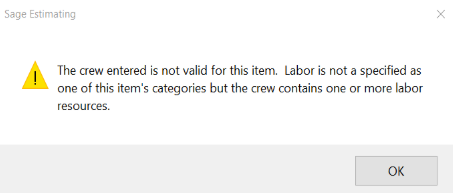
If you receive an error related to crews and item cost categories, you will need to verify that the labor item’s cost category matches the labor category used by the assigned crew.
The labor categories available to a crew are determined by the resources assigned to that crew. Resources act as the cost category drivers and are categorized as either Labor or Equipment, similar to the categories used in a rate table. Depending on the resources assigned, a crew may use Labor, Equipment, or both.
The steps below will walk you through reviewing the labor item’s cost category and the assigned crew to confirm that the categories are compatible. Administrative rights are required to complete these steps.
For additional information about creating and configuring crews, see the Sage Knowledgebase article on crews.
1. Open the Edit Database Items window.
You will need to open the Edit Database Items window to begin checking the line item details.
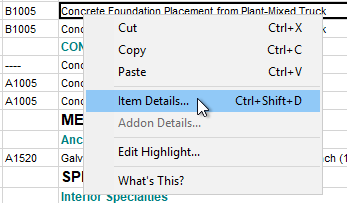
If you have the line item in your estimate sheet, place your curser in the item's field, right click, and select Item Details from the list.
This will open the Edit Database Items window and take you directly to the item without a search.
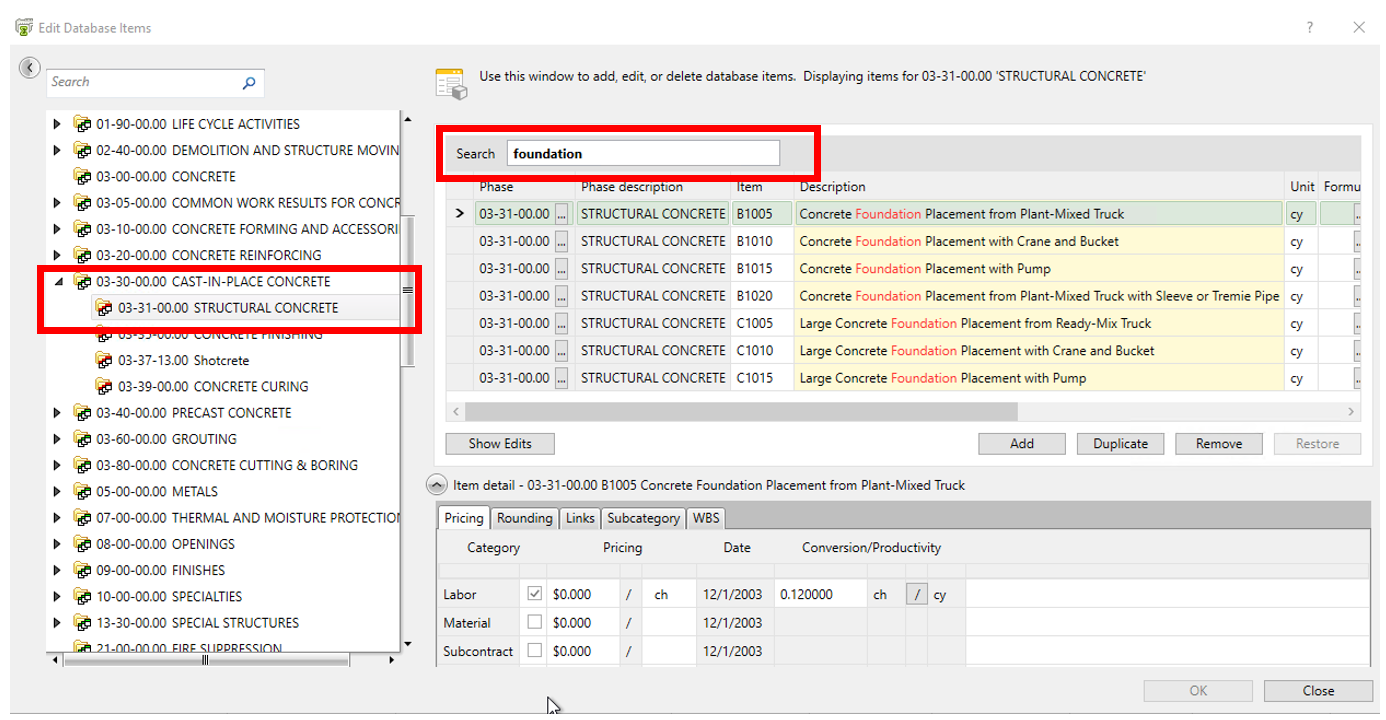
The item's details will be displayed at the bottom of the window.
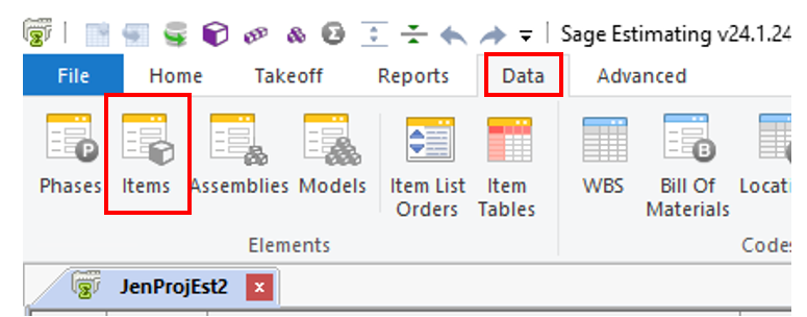
If you need to search for the line item in the database, Go to the Data tab and click on Items.
Click on the correct Group Phase and Phase (left pane) and use the search to find your item. When you see the item, click on it's row to highlight it.
2. Review the crew.
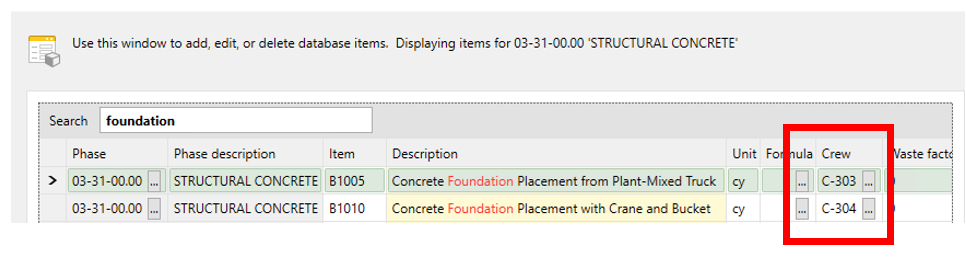
The line item’s assigned crew will be displayed to the right of the item (do not click the three dots, that will open a window to change the crew).
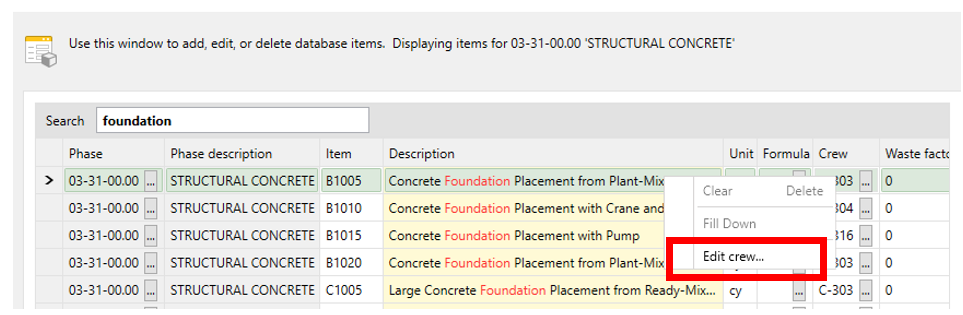
Make sure the item's row is still highlighted, then right click on the Crew and select Edit Crew. This will open the Database Crew window.
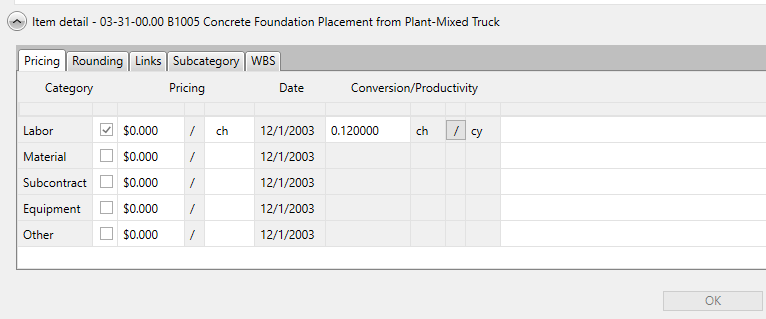
Note: Remember to note that the line item’s details are located at the bottom of the, "Edit Item Details," window. You will need to compare these details with the crew’s resources once identified.
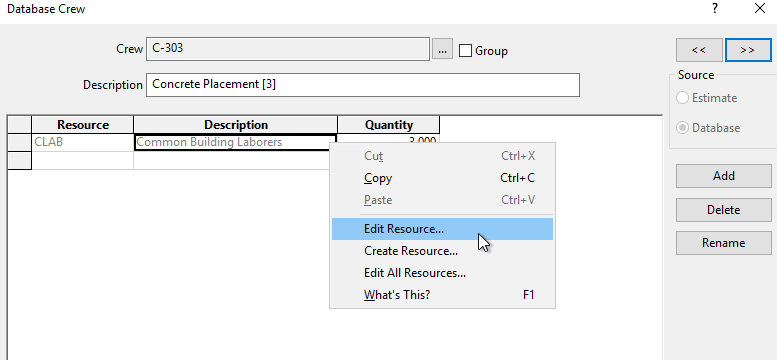
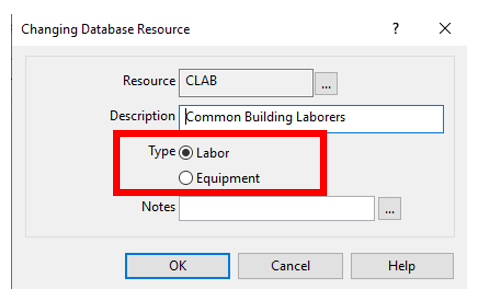
3. Review the crew's resources. In the Database Crew window, you can view which resources are assigned to the crew. In the example below, the C-303 crew, or Concrete Placement crew, is made up of only one resource: CLAB, or Common Building Laborers. Right click one of the resources assigned to the crew and select Edit Resource..
This will open the Changing Database Resource window.
In the Changing Database Resource window, you can view whether the selected resource is classified as Labor or Equipment. In the example below, the resource is classified as a Labor resource (this also means this resource is associated with a Labor rate table; An Equipment resource type would be associated with an equipment rate table). Check the other resources in the crew and verify if they are classified as Labor or Equipment also and make a note of that. After confirming the resource type(s), click Cancel and Close to exit out of the two windows.
4. Verify compatible resources.
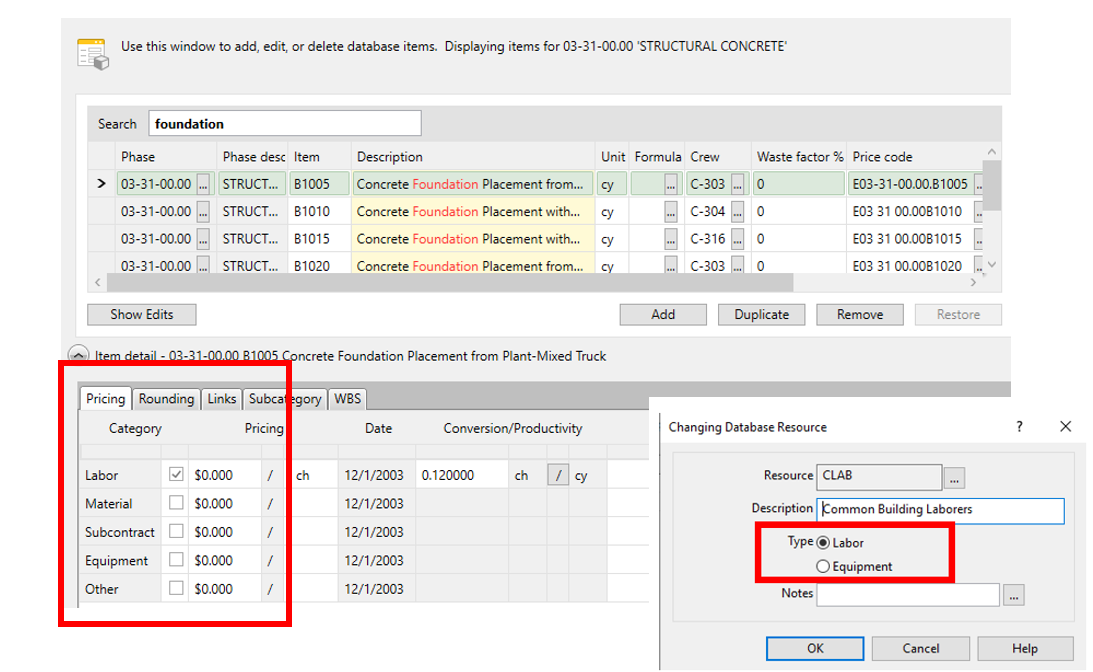
Next, check that the crew's resources have matching labor types to your line item cost categories. Line item details for comparison are located the bottom of the Edit Database Items window, under the Pricing tab.
In the example below, the crew's labor resource matches the line item's Labor cost category, so the crew and resource are properly set up for this line item and are compatible. If Equipment is selected for the resource, then Equipment must also be checked as a cost for the line item.
Crews can contain resources with a mix of Labor and Equipment resource types. If the total of the crew's resources contain both Labor and Equipment, both will be required to be checked in the line item's cost category as well.
Note: Also, make sure there is no cost or pricing entered for the Labor and/or Equipment costs when the line item has an assigned a crew. Crews use pricing from the rate tables, not the cost in the item details. In the situation that your crew only has Labor resources though, you could enter a cost for Equipment, and visa versa. It's only the associated labor types that should have the line item cost left at zero dollars.
5. Once you have the cost category and it's crew resource types validated and setup properly, you should not receive the, "Crew entered is not valid," error anymore. If you do, contact our Eos Support team for assistance.