
Troubleshooting Excel Timeout Errors When Exporting from Sage Estimating
If you receive a Server Busy or timeout message while exporting a report from Sage Estimating to Microsoft Excel, the issue is commonly related to Microsoft Excel or the Windows environment rather than Sage Estimating itself. Follow the troubleshooting steps below to help identify and resolve the issue.
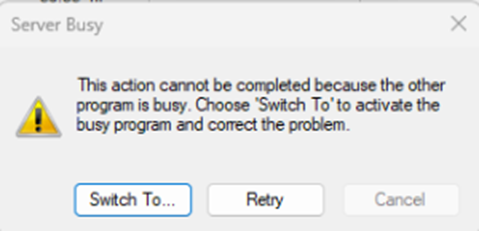
1. Is Excel hiding a dialog box behind the Sage application?
Check for hidden Excel dialog boxes. A hidden dialog box is a common cause of this error. If Excel is waiting for user input, Sage Estimating may be unable to complete the export process. To check for hidden Excel windows or dialog boxes:
- Leave the Server Busy message open.
- Press Alt + Tab repeatedly.
- Look for:
- Microsoft Excel
- A blank or unnamed Excel window
- Any small dialog window
If Excel is waiting for user input, switching between open windows with Alt + Tab will often unmask it. Respond to the prompt and then attempt the export again.
You can also check the Windows Taskbar (bar across the bottom of your screen) to verify if another Excel session is already open. One of the sessions could have an open dialog box causing its applications to freeze. To look on the taskbar, hover over the excel icon in your desktop taskbar and click each open session to check for open dialog boxes.
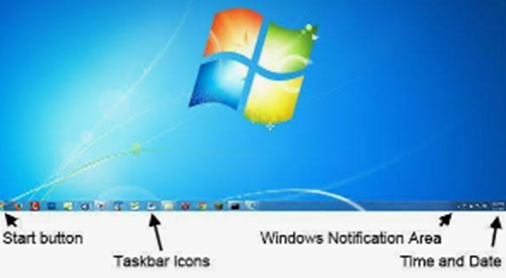
2. Is Excel already running in the background?
Verify that Excel is not running in the background. To check:
- Close Sage Estimating and any Excel windows.
- Open the Task Manager (Ctrl + Alt + Del > Task Manager).
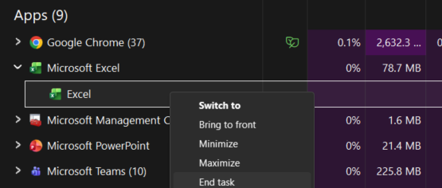
- End all EXCEL.EXE processes.
- Launch Sage and test the report export again.
3. Verify that Excel functions correctly outside of Sage Estimating
Are you able to open a new application of Excel on your desktop and create a new file, name it and save it locally? If Excel cannot complete these actions outside of Sage Estimating, the issue may be related to the Excel installation, MS Office configuration, user profile, or system permissions.
4. Test Excel in safe mode
If the export succeeds while Excel is running in safe mode, an Excel add-in may be interfering with the export process.
- Press Windows + R

- Type this exactly in the Run window (include space): excel /safe
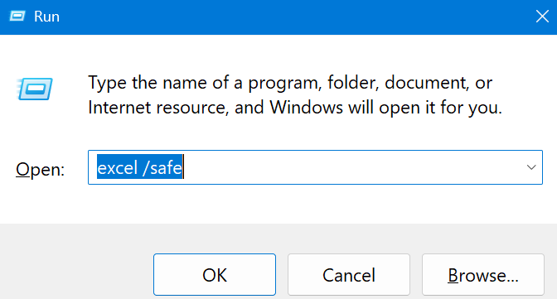
- Click OK or press Enter
- Do you want to start Excel in Safe Mode? – Click Yes
- Once the Excel pops up in Safe Mode, open Sage Estimating and try to export the report again.
If the issue persists
If the export still fails after completing the steps above:
- Repair the Microsoft Office installation.
- Install pending Microsoft Office and Windows updates.
- Test with a different Windows user profile.
- Email Eos Group Support (support@eosgroup.com) and provide screenshots of the error message along with any troubleshooting results.